
Question

Click a Button, Insert List of Standard Tasks

  • May 8, 2026
  • 4 replies
  • 42 views

Emily.Ann
Forum|alt.badge.img+1

I got this idea from the AirTable webinar for their Field Marketing team, where they can click a button and generate standard tasks for different events.

I worked with an AirTable team member onsite at the NYC event and created my “Tasks” table and I know how to make the button automation. But I seem to still be missing a step.
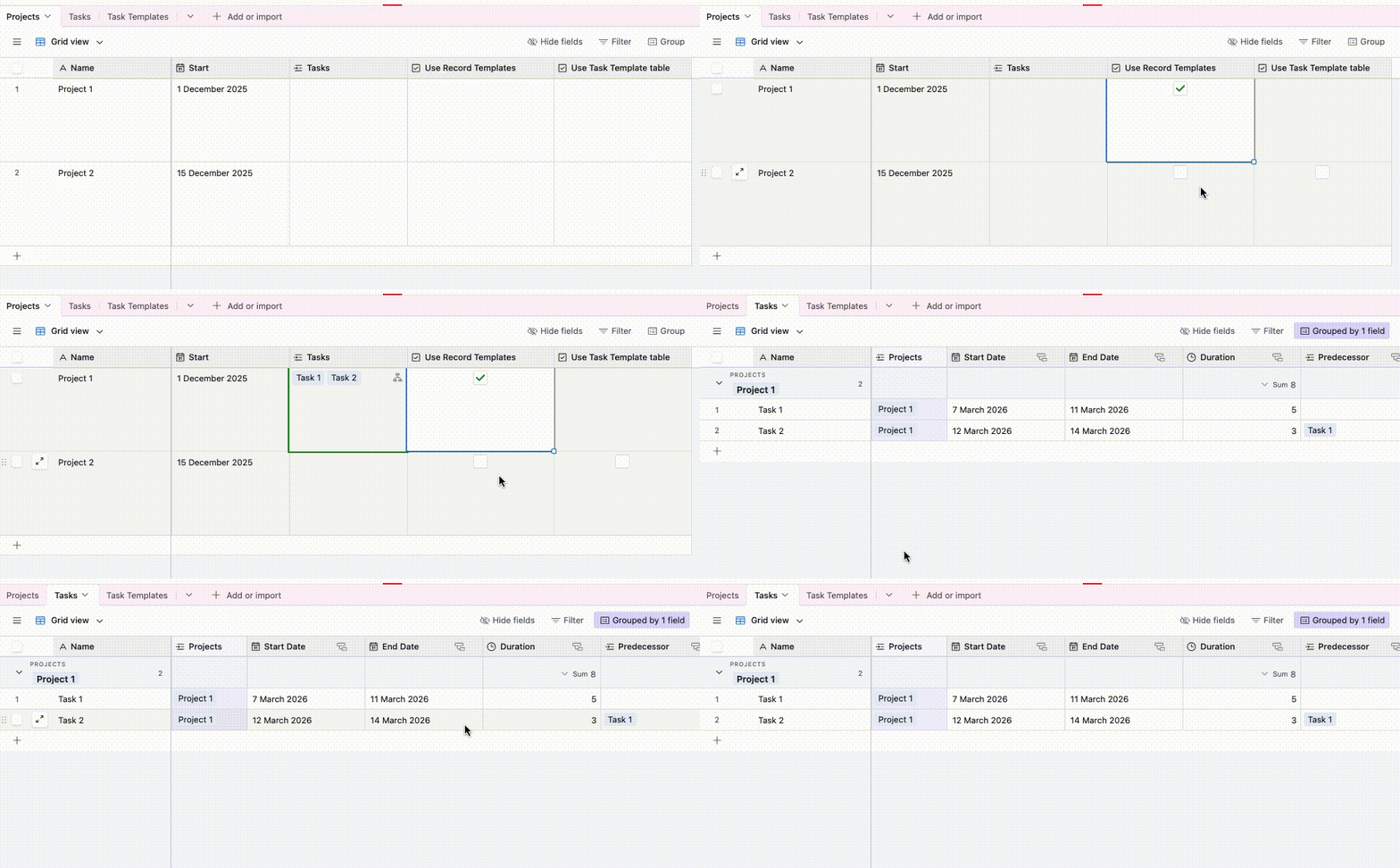
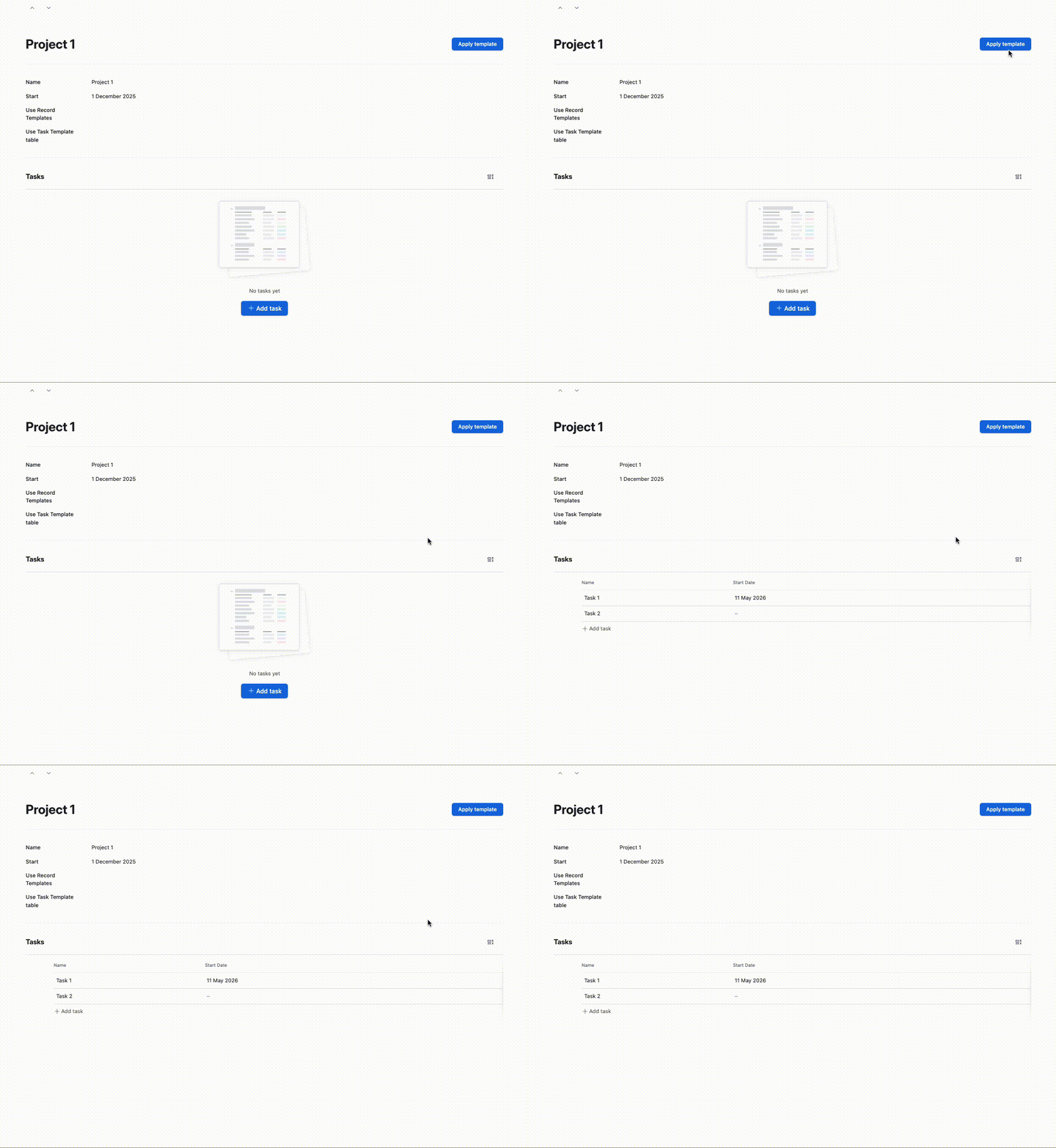
(my tasks table):

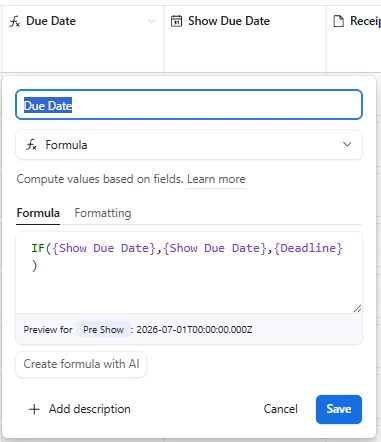
How do I link my tasks to the event so I can have different due dates? I’m trying to avoid the date dependency set up since our events have different requirements and my coordinators need to be able to adjust those as needed.


The real issue I’m trying to solve is that my current task automation is set up with record templates but doesn’t assign those templates to a specific event so I have to go through manually and assign the a show.

4 replies

DevonK
Forum|alt.badge.img+17
  • Inspiring
  • May 8, 2026

You’ll want to have a list of tasks to use as a template, but your automation should duplicate these tasks for each individual event.

An easy way to set this up would be to use “find records” step, followed by a “repeat for each” step.

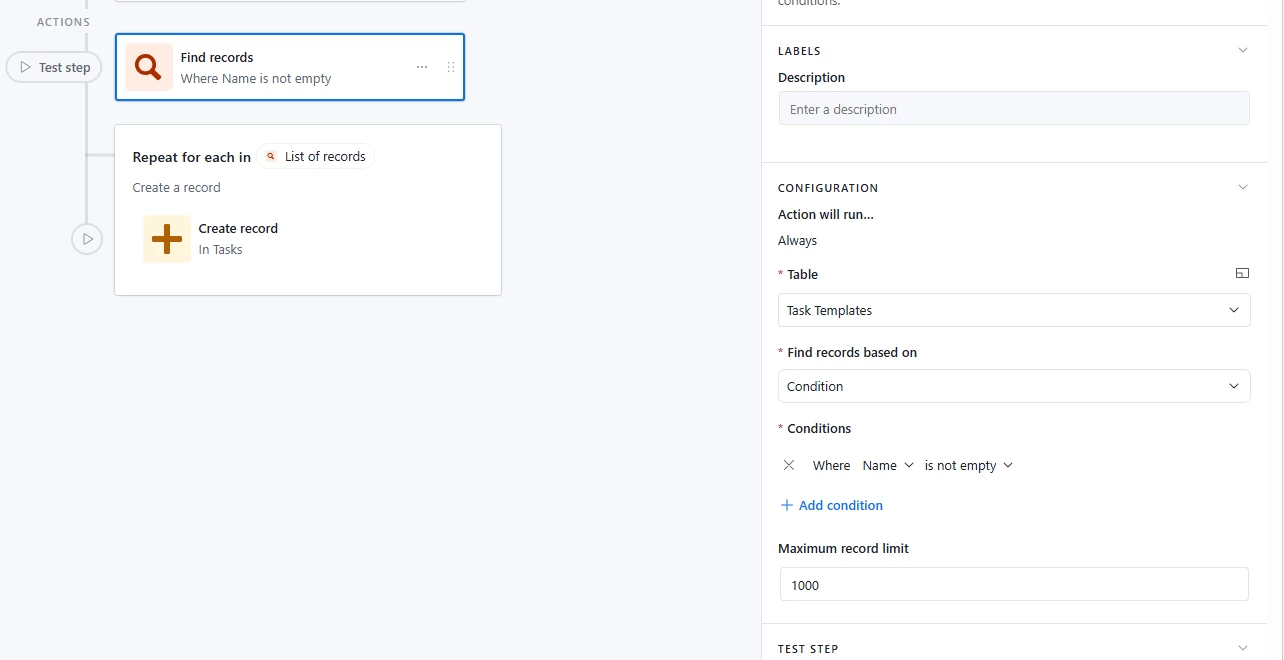
Find all records in “Task Templates” (I put this in separate table for this example):


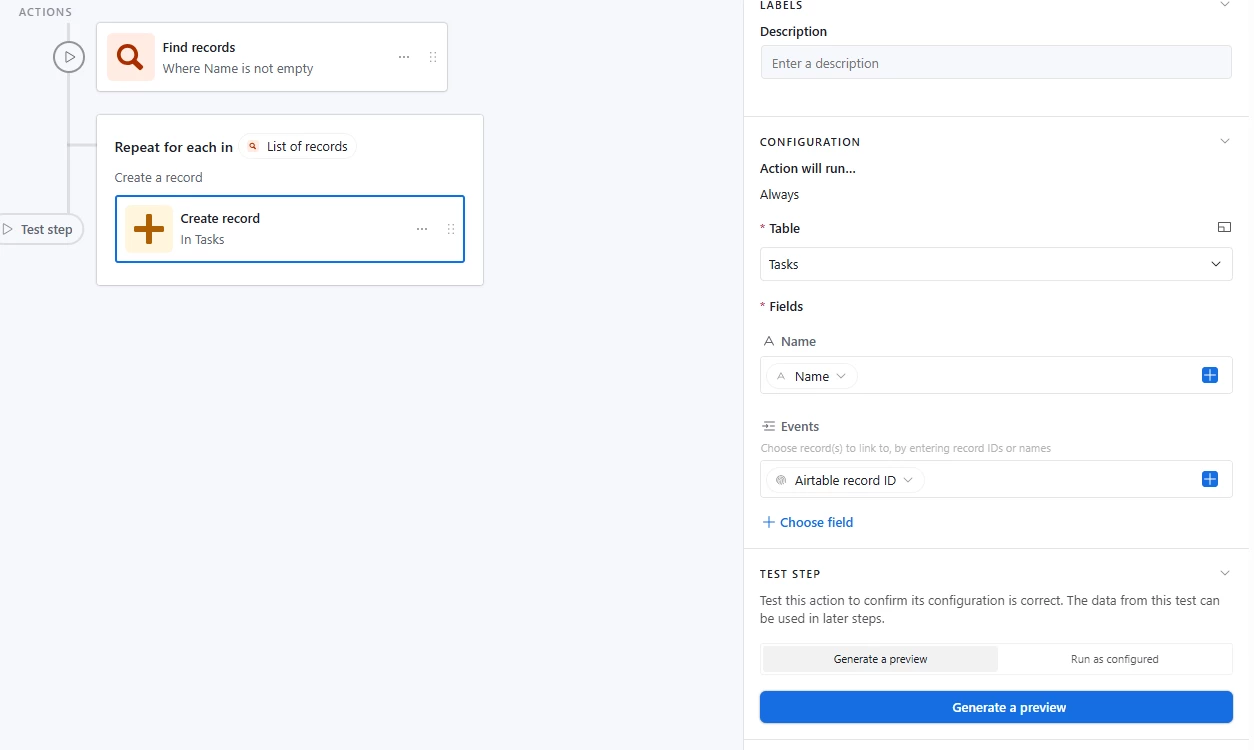
For each record in Task Templates, create a new record in the “Tasks” table. Link that new task to the RecordId of your triggering event:


Mike_AutomaticN
Forum|alt.badge.img+29

Hey ​@Emily.Ann,

You’ll probably want to take a look at this video below.


Reagrding your question on dates specifically, what is the logic behind date? Meaning: Should due date be x dates as from creation date for example?

Mike, Consultant @ Automatic Nation 
YouTube Channel  


TheTimeSavingCo
Forum|alt.badge.img+32

re: The real issue I’m trying to solve is that my current task automation is set up with record templates but doesn’t assign those templates to a specific event so I have to go through manually and assign the a show.
Hm, how are you triggering the automation?  I’ve got a similar setup where I trigger the automation via the Event itself, and so the tasks get assigned to it automatically and I’m wondering where our workflows differ


re: How do I link my tasks to the event so I can have different due dates? I’m trying to avoid the date dependency set up since our events have different requirements and my coordinators need to be able to adjust those as needed.

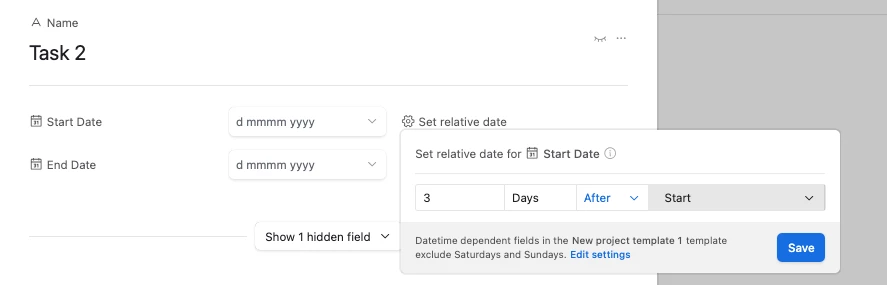
Ah I’m curious about this bit.  Record Templates let us set up relative dates based on the original record, e.g. 3 days after the ‘’Start Date” of the triggering record itself, and so doesn’t need to use date dependencies.  In your context, that would allow you to prefill the due dates for the tasks and the coordinators would be able to update those individually without affecting the other tasks?


LeoCardinale
  • New Participant
  • May 9, 2026

Hi ​@Emily.Ann! I did something quite similar for a client (Real Estate company) which works in both worlds “Data” and “Interfaces”.

When they “Add” a new property, several actions are taken and one of those is creating a list of Admin Tasks. Here is how I did it:

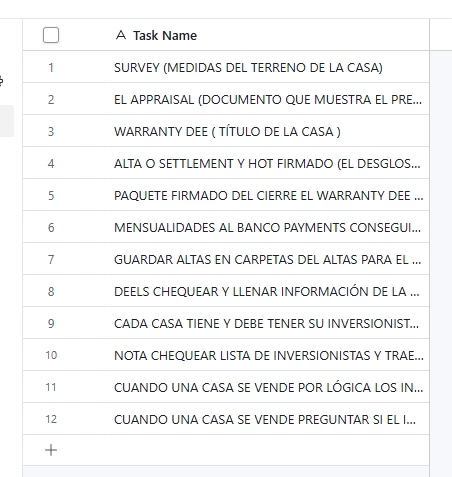
  1. As ​​​​@DevonK said, you first need a template of tasks, in our case the only field I need to replicate is the Task name:
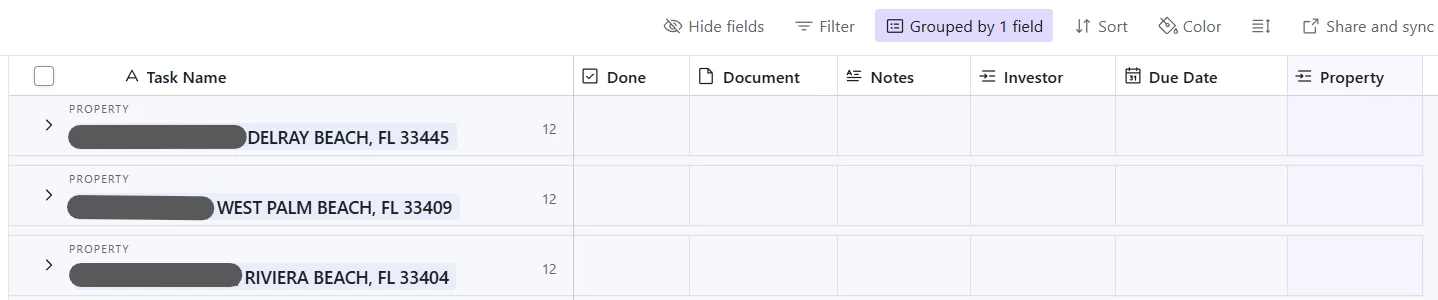
  2. Then this is how the Admin Tasks table looks, it’s grouped by the linked record “Property”:
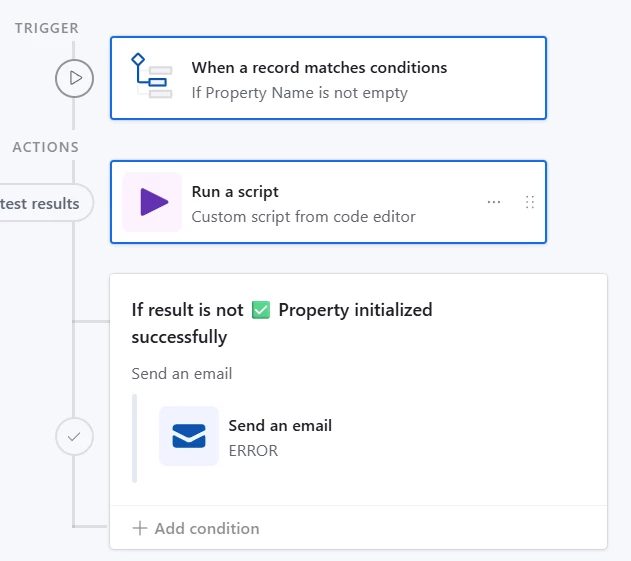
  3. And the magic is here in the Automation, I have this simple workflow:

    The scrip is huge but the part that performs that duplication from the “Admin Tasks Template” table to the “Admin Tasks” table is this one:
     

    1. First define and get the recordId of the new Property (new Show in your case):

      try {
      const propertiesTable = base.getTable('Properties');
      const tasksTable = base.getTable('Project Tasks');
      const tasksTemplateTable = base.getTable('Project Tasks Template');
      const progressTable = base.getTable('Project Progress');
      const sowTable = base.getTable('Scope of Work');
      const sowTemplateTable = base.getTable('Scope of Work Template');

      // Obtener el record creado
      const propertyId = input.config().recordId;
      const property = await propertiesTable.selectRecordAsync(propertyId, { fields: ['Property Name'] });
      if (!property) {
      output.set('result', '❌ Error retrieving property');
      return;
      }


    2. Check if the tasks are not already created and, if not, create them:

      // ============================================================
      // PARTE 4 — Admin Tasks
      // ============================================================
      const adminTasksTable = base.getTable('Admin Tasks');
      const adminTasksTemplateTable = base.getTable('Admin Tasks Template');

      const existingAdminTasks = await adminTasksTable.selectRecordsAsync({ fields: ['Property'] });
      const hasAdminTasks = existingAdminTasks.records.some(r => {
      const linked = r.getCellValue('Property');
      return linked && linked.some(p => p.id === property.id);
      });

      if (hasAdminTasks) {
      //output.text('⚠️ Admin Tasks already initialized — skipping');
      } else {
      const adminTemplate = await adminTasksTemplateTable.selectRecordsAsync({
      fields: ['Task Name']
      });

      const newAdminTasks = adminTemplate.records.map(t => ({
      fields: {
      'Task Name': t.getCellValue('Task Name'),
      'Property': [{ id: property.id }]
      }
      }));

      let adminTasksToCreate = [...newAdminTasks];
      while (adminTasksToCreate.length > 0) {
      await adminTasksTable.createRecordsAsync(adminTasksToCreate.splice(0, 50));
      }
      //output.text('✅ ' + newAdminTasks.length + ' admin tasks created');
      }
    3. Lastly, always the error handling :)
        output.set('result', '✅ Property initialized successfully');
      } catch (error) {
      output.set('result', '❌ Error: ' + error.message);
      }

Let me know if you have any doubts or comments. Happy to help.

Greetings from Madrid!