Question

Using Fillout to Look up Airtable Records

  • March 17, 2026
  • 4 replies
  • 17 views

Hello! I’m fairly new to Airtable, and very new to Fillout. I’m creating a form that collects a user's name, some city specific info, and then asks them to agree to terms and upload a photo of their driver's license. A lot of the users of this form are on tour and will be asked to fill it out in each city they visit, so we were looking for a way to save their name, agreement, and ID. Ideally after their initial time using the form, all they need to do is input the city specific information.


My idea was to use Fillout to ask for a user’s email- if that email already exists in the database, they would get a shortened version of the form that only requires city specific information. If they are a new user, they would see the entire form.


Any and all help would be appreciated!!

4 replies

DisraeliGears01
Forum|alt.badge.img+21

The way I’d handle this is slightly differently but it’s basically achievable through Airtable and Fillout.

On the Airtable side, you have two tables, Users and Sites (or Cities). Then in Fillout you have two forms, one that creates records in the User table, and another that Edits records in the User table.

For onboarding you send people the perma-link to the New User form. Then when that form is completed, an Airtable automation sends them an email with their submitted details and a link to the Edit form, which is unique to their specific User record. You ask users to hold on to that email or that url (bookmark it). Then when users need to add a new city, they click that Edit form link, and their User info is auto-populated. In that edit form, you allow for creating and/or editing Site records, so those users can add new sites (Detroit, 3/18/26, 100 attendees) that are associated with their User record.


ScottWorld
Forum|alt.badge.img+35
  • Genius
  • March 18, 2026

@SkyDeBoer 

Yes, what ​@DisraeliGears01 said above is the #1 best option for solving this problem

Like he mentioned, you would have 2 forms: a “create new record” form and an “update record” form.

Your users would start with the “create new record” form, and then you would automatically email them the link to the “update record” form. More details on Fillout’s website here.

I demonstrate the vast majority of this process on this Airtable podcast episode:

Alternatively, there is a more complex way of solving this problem — although this might be overkill for your needs.

You could use Fillout’s ability to add a login page to your form, which gives you many different options for your login page:

  1. You can restrict the logins by SSO.
  2. You can restrict the logins by email domain.
  3. You can restrict the logins by password.
  4. You can restrict logins based on a pre-approved list of email addresses that you have stored in your Airtable base.
  5. You can verify & confirm that the user is typing in a valid email address.

After the user logs in with their email address, that will let Fillout know what the user’s email address is.

Then, you can use this email address to (1) automatically prefill other fields on your form based on who logged into your form, (2) conditionally navigate through different pages on your form, and (3) you could use Fillout’s filtering features to filter any linked record fields to only show the user the linked records that are related to their email address record in Airtable. This 3rd option would probably be most relevant to your needs.

- ScottWorld, Expert Airtable Consultant


TheTimeSavingCo
Forum|alt.badge.img+31

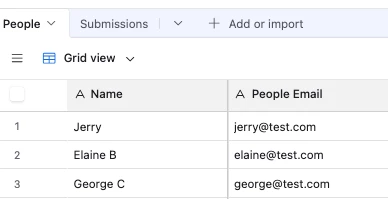
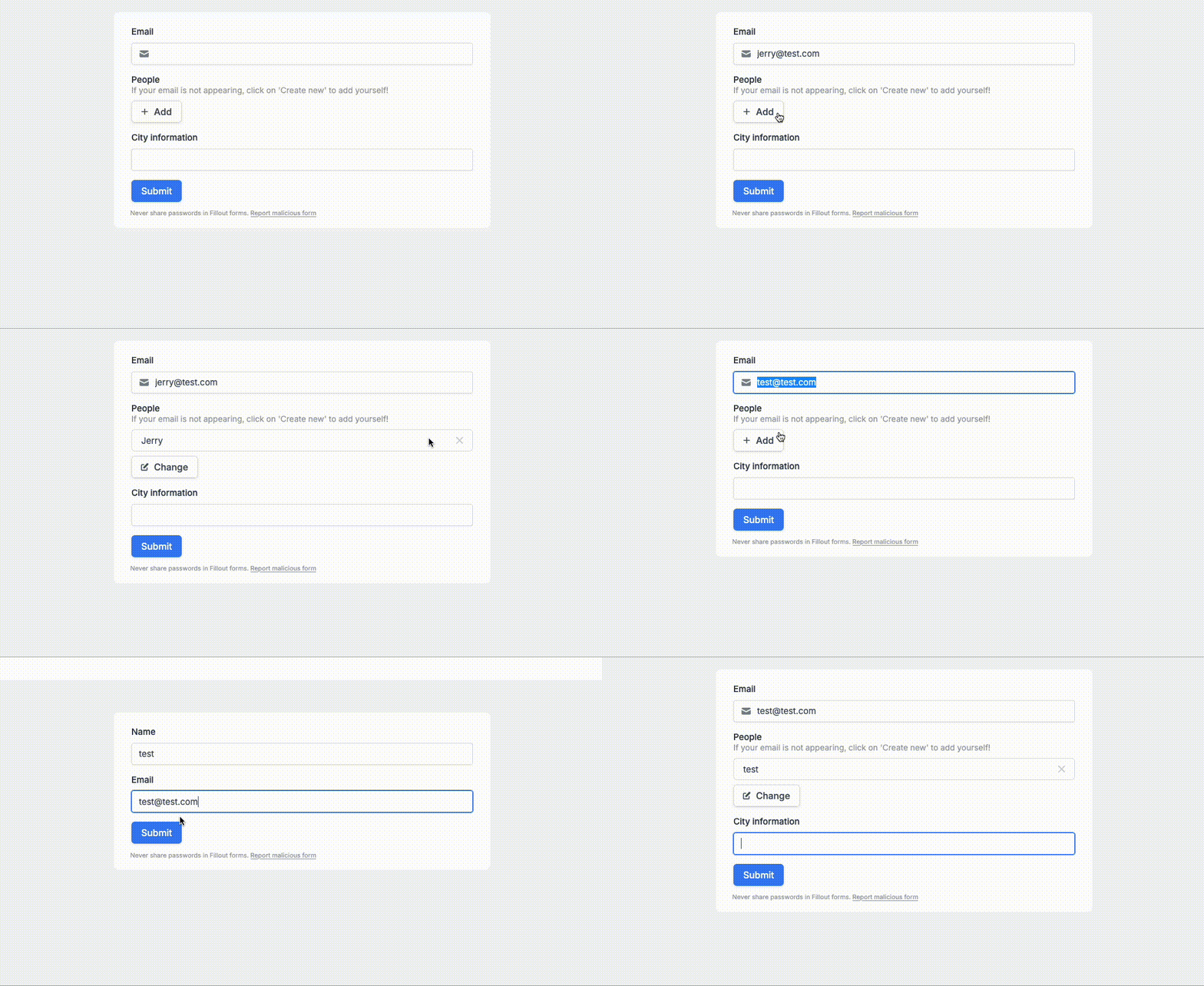
Yeap you can do this via Fillout with a single form!  In the gif below, you can see that the ‘People’ list doesn’t show anything unless the email already exists in the ‘People’ table:

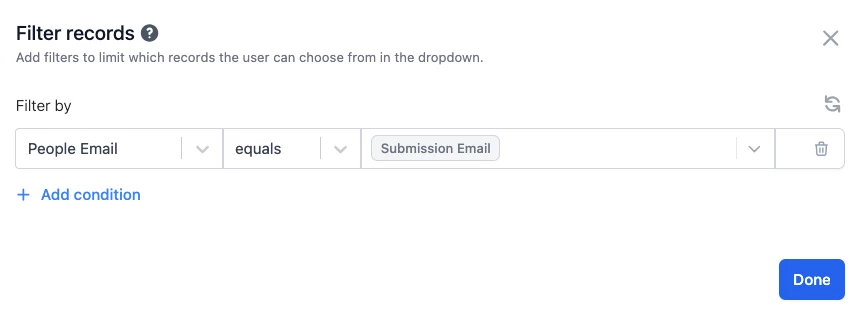
And this works by adding a filter on the linked field in Fillout:

Lemme know if you have any issues setting it up and I’ll do what I can to help!


  • New Participant
  • March 18, 2026

Hi, 

The easiest way to do this is to set your form to "Update an existing record." You’ll add an Email field at the start and turn on the "Find record" setting. Then, you just set Conditional Visibility on the Name, ID, and Terms fields so they only show up if no record is found. If the email exists, those fields stay hidden, and they just see the city questions. If it's a new email, the whole form pops up. It’s super slick for people on the move!