
Question

CSV Import Extension (Merge/Update): Can a Checkbox be reliably set from TRUE → FALSE?

  • January 8, 2026
  • 4 replies
  • 55 views

Forum|alt.badge.img

Hi Airtable Community,

I’m trying to confirm whether the CSV Import Extension supports updating an Airtable Checkbox field from TRUE → FALSE when using “Update existing records / Merge”—or if there’s a known limitation/workaround.

What I’m trying to do

We run a recurring sync where we:

  1. Export a CSV from Google Sheets that contains:

    • a unique ID (used for matching)

    • several columns of values

    • one column that represents a boolean (e.g., TRUE / FALSE)

  2. Import that CSV into Airtable using CSV Import Extension → “Merge with existing records”

  3. Map:

    • CSV ID → Airtable ID field (for matching)

    • CSV boolean column → Airtable Checkbox field

What works

  • If the Airtable checkbox is currently unchecked (FALSE) and the CSV value is TRUE, the checkbox updates to checked (TRUE) correctly.

The issue

  • If the Airtable checkbox is currently checked (TRUE) and the CSV value is FALSE, the checkbox does not get unset—it stays TRUE after the merge/update.

I’ve tested multiple “false” representations in the CSV, including:

  • FALSE

  • Off

  • unchecked

  • no

In all cases, FALSE → TRUE works, but TRUE → FALSE does not.

Steps to reproduce (minimal example)

  1. Create a table with:

    • a unique ID field

    • a Checkbox field

  2. Create a record where the checkbox is TRUE

  3. Create a CSV with the same ID and the checkbox column set to FALSE

  4. Use CSV Import Extension → Merge with existing records

  5. Map ID + checkbox field

  6. Run import

  7. Result: checkbox remains TRUE instead of changing to FALSE

Questions

  • Is this expected behavior / a limitation of the CSV Import Extension?

  • If yes: is there any recommended workaround to force TRUE → FALSE updates via import/merge?

    • e.g., using a different field type, a formula + automation, a scripting workaround, or a specific accepted CSV value format?

4 replies

ScottWorld
Forum|alt.badge.img+35
  • Genius
  • January 8, 2026

It might be a bug if Airtable won’t let you change a checkbox from checked to unchecked by importing “false” or “unchecked”. You may want to email support@airtable.com to alert them to this.

In the meantime, if you just leave the checkbox column blank (empty) in the CSV file, that will overwrite Airtable’s checkbox field from checked to unchecked.

Another method that will work would be to import 1 for checked and 0 for unchecked.

So your options are:

  • (leave cell empty)
  • 0

Hope this helps!

- ScottWorld, Best Airtable Consultant


Mike_AutomaticN
Forum|alt.badge.img+28

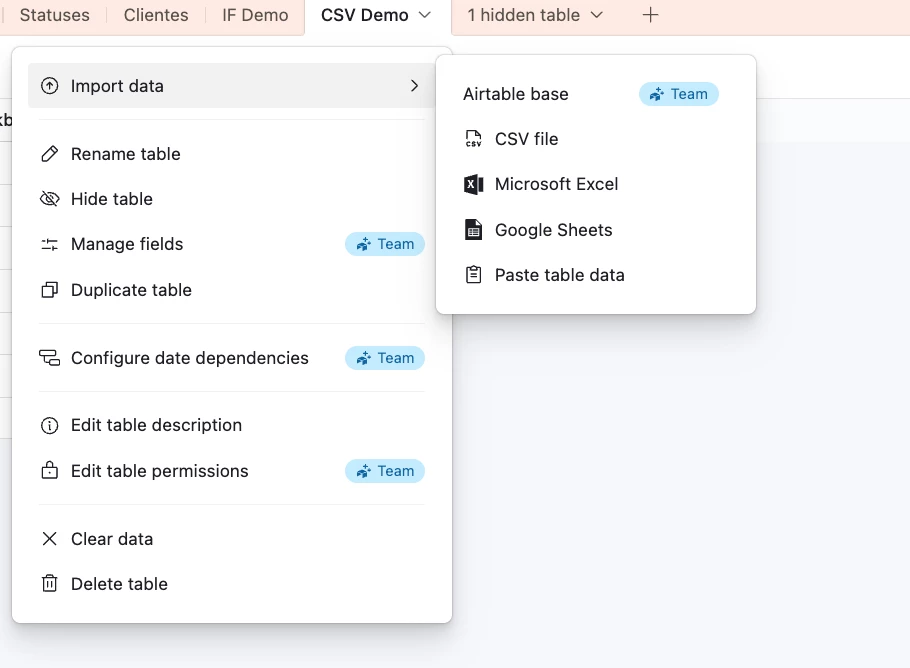
Hmhhh rather than using CSV import I tried airtable native “Import Data” > “CSV File”.


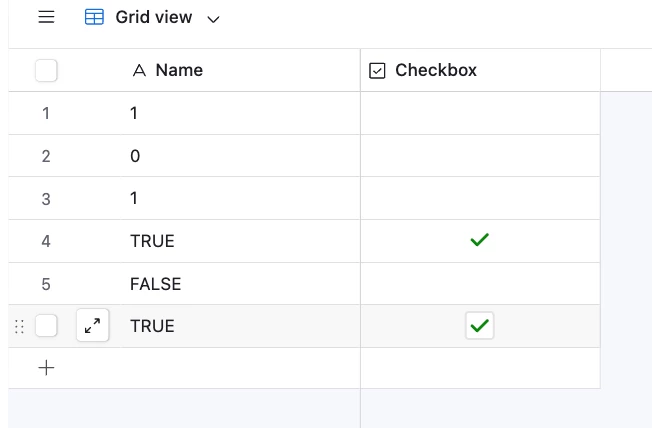
I mapped a column with 1 and 0 in Google Sheets to my Airtable Checkbox field.
Nothing happened...

I ran the same exmample with TRUE and FALSE rather than 1 and 0, and it did check the box!


Again, this is not using Airtable’s Import CSV extension. I should give that a shot!

Mike, Consultant @ Automatic Nation 
YouTube Channel


ScottWorld
Forum|alt.badge.img+35
  • Genius
  • January 9, 2026

@Mike_AutomaticN   Unfortunately, he can’t use that option because he’s merging existing records, which is only available with the CSV Import extension.

- ScottWorld, Best Airtable Consultant 


Mike_AutomaticN
Forum|alt.badge.img+28

Oh right!

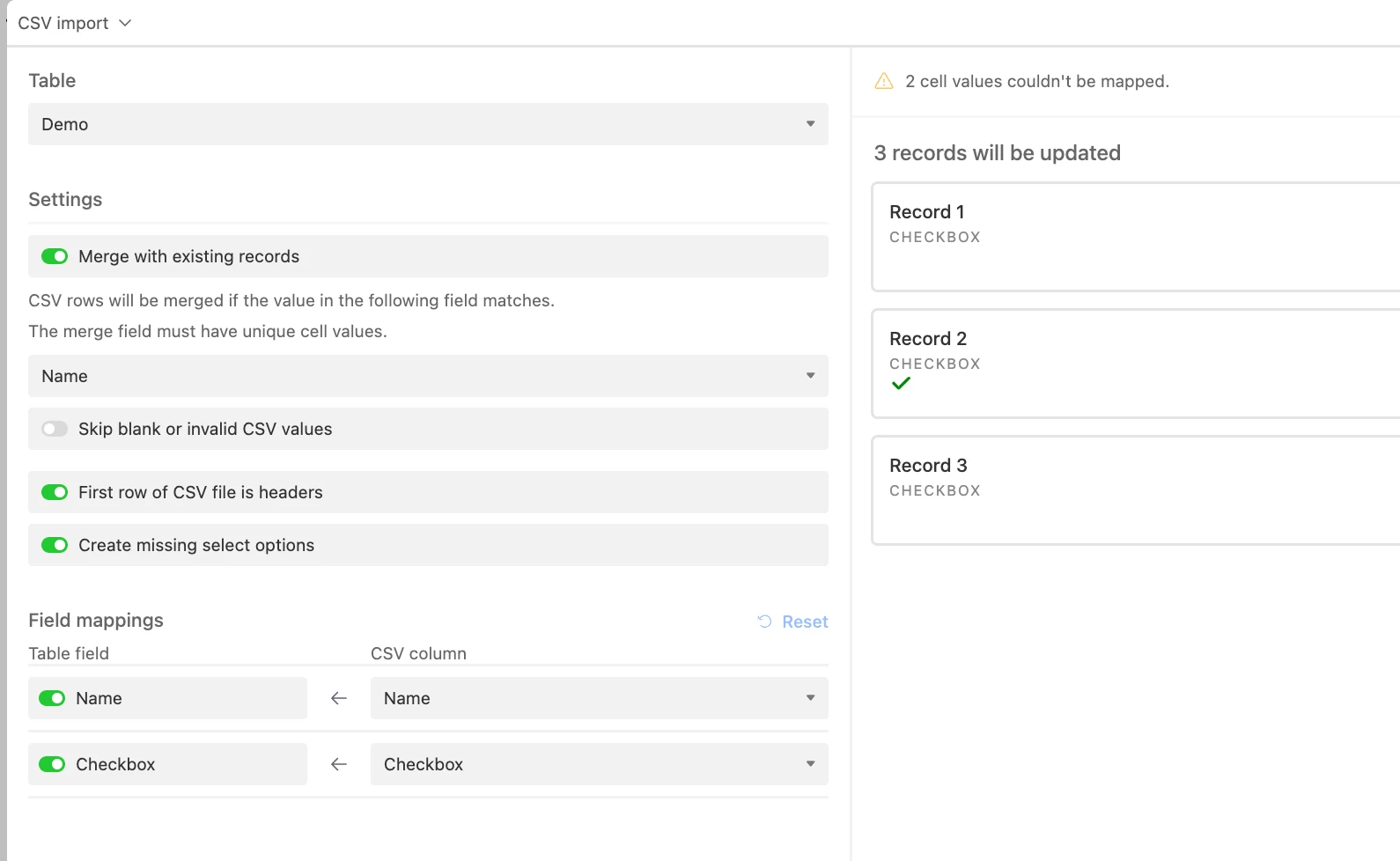
Just tried with CSV Import extension with “Merge with existing records”, and it worked with both 1 and 0, or TRUE and FALSE. See screenshot below.


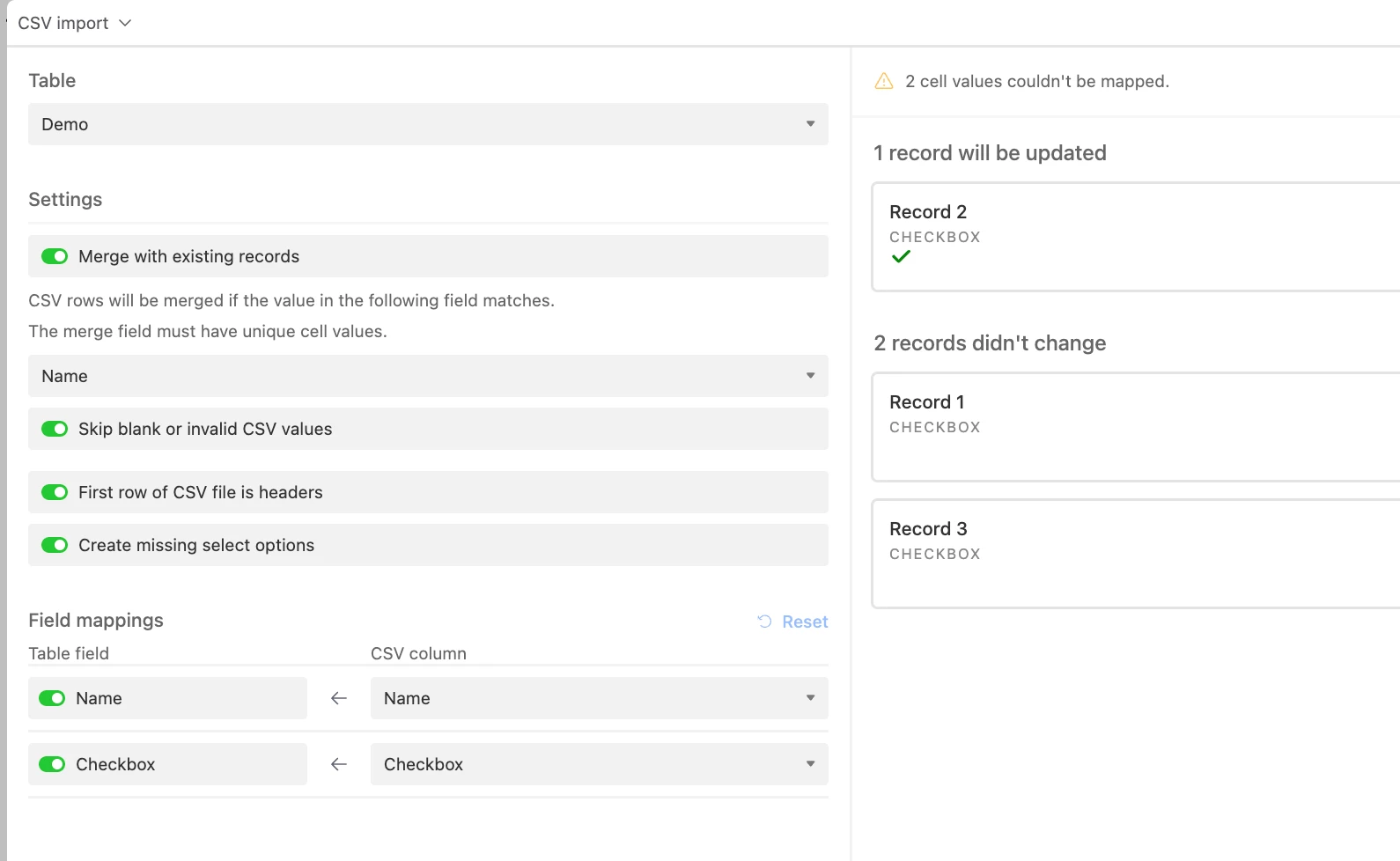
@skipmondays please make sure that “Skip blank or invalid csv values” is NOT toggled ON.
See the difference on the screenshots below.

If toggled OFF: FALSE or 0 will uncheck a checked checkbox:


If toggled ON: FALSE or 0 will just skip the records:


Having said that, if the issue persists you will want to reach out to support@automaticnation.com as mentioned by Scott above (that guy is always right!).


Mike, Consultant @ Automatic Nation 
YouTube Channel