
Need a help to creat 7 day summary for luggage store rental

  • January 29, 2026
  • 5 replies
  • 48 views

Forum|alt.badge.img+1

Hello everyone,

I am new to Airtable and would really appreciate some guidance from the community.

I run a luggage storage startup in India, and we use Airtable to manage our customer bookings. Each booking record includes:

  • Booking reference number

  • Customer details (linked / lookup field)

  • Payment method (Stripe or PayPal)

  • Payment status (Yes / No)

  • Booking status (calculated using a formula)

  • Booking created date

  • Start date & time of the booking

  • End date & time of the booking

When the payment status is “Yes”, the booking status changes to “Confirmed.”
When the customer arrives and starts using our service, the status changes to “Renting.”

As our number of bookings has grown, I am struggling to create one single view that shows:

  • All confirmed bookings that will start within the next 7 days (including today)

  • All currently renting bookings that are active now and/or ending within the next 7 days

The goal is to give our agents a quick operational overview, so they don’t have to open bookings one by one to make decisions.

I’ve tried using standard filters and Interfaces, but I’m not very experienced with Interfaces yet, and my attempts have not worked as expected. I also noticed that a competitor seems to have a similar 7-day operational view, but I haven’t been able to figure out how to achieve this in Airtable.

If anyone could suggest the best approach (formula field, filter logic, or Interface setup), I would be extremely grateful.

Thank you very much in advance for your help!

5 replies

DisraeliGears01
Forum|alt.badge.img+21

This should be fairly simple with filter groups on the data layer, which you can replicate into an interface if desired. 

For the filter the logic should be basically 

In this view, show bookings where..

  • Condition Group 1: 
    • Where Booking Status is Confirmed 
    • and Start Date is within the next number of days 7

or

  • Condition Group 2:
    • ​​​​​​​Where Booking Status is Renting
    • and End Date is within the next number of days 7


Mike_AutomaticN
Forum|alt.badge.img+28

Hey @hello161

As mentioned by ​@DisraeliGears01 above, one way would be to set that up on your filter using groups. More on that matter here.

The other way would be to create a helper formula field. 

Step 1: Add a helper formula field in your Bookings table, call it “In next 7 days?” with something like: 
 

IF(
OR(
AND(
{Booking Status} = "Confirmed",
IS_AFTER({Start Date}, TODAY()),
DATETIME_DIFF({Start Date}, TODAY(), 'days') <= 7
),
AND(
{Booking Status} = "Renting",
IS_AFTER({End Date}, TODAY()),
DATETIME_DIFF({End Date}, TODAY(), 'days') <= 7
)
),
"Yes",
"No"
)


Step 2: Create a new grid (or calendar) view called “Next 7 days summary” and add a filter: 
“In next 7 days? is Yes” 


Feel free to grab a slot using thisi link if you need any help setting this up. Happy to help :D 

Mike, Consultant @ Automatic Nation 
YouTube Channel


Forum|alt.badge.img+1
  • Author
  • New Participant
  • February 1, 2026

Thanks to both @DisraeliGears01  and @Mike_AutomaticN   I really appreciate the time and effort you put into helping me. 🙏

I’ve tried both methods you suggested, and technically they work.. However, they don’t achieve what I’m actually trying to see in the Next 7 Days summary.

Let me clarify my goal again with a clearer explanation (I’ll attach screenshots/images below).

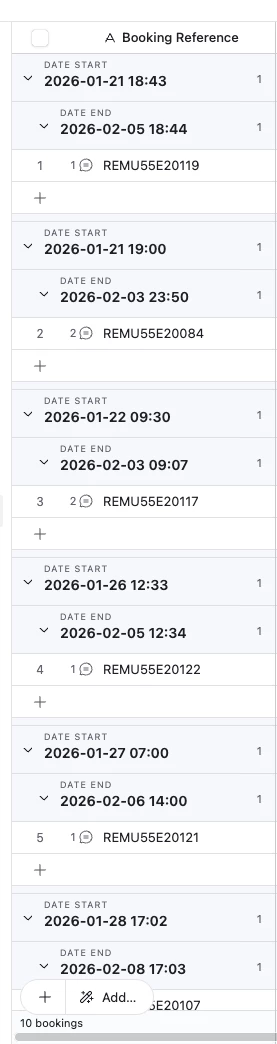
When I use the suggested methods, the filtered views show mixed start and end dates together. While the data is correct, it becomes visually confusing during daily work. My eyes aren’t trained to constantly scan each row and distinguish between start dates and end dates every single time.

What I’m trying to achieve instead is a separated and more intuitive summary, similar to how one of our competitors displays it.

For example:

1 Feb 2026 (or Today)
Start

  • Booking 01

  • Booking 02

  • Booking 03

  • Booking 04

  • Booking 05

Today
End

  • Booking 02

  • Booking 03

  • Booking 04

  • Booking 05

2 Feb 2026


  •  


alexmcdonnell
Forum|alt.badge.img+7
  • Community Manager
  • February 2, 2026

@hello161 interesting, seems like you want to group/view by the calendar date itself rather than by the start/end date on the actual record as shown in your screenshot.

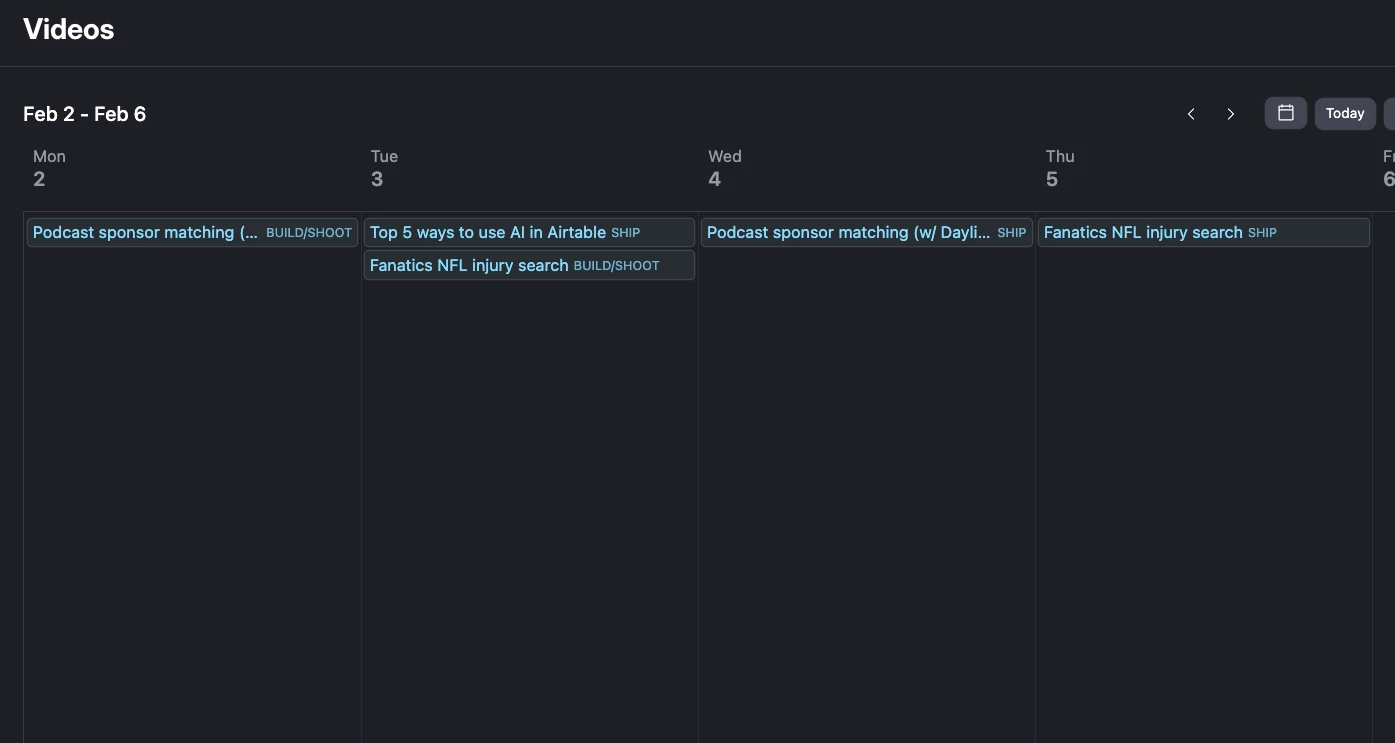
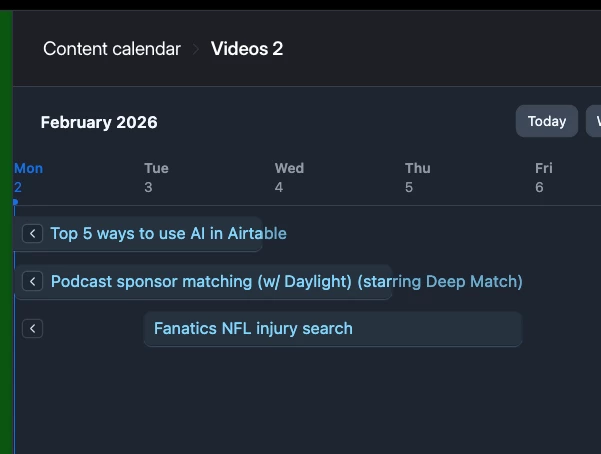
In that case, I would suggest using a calendar or timeline (as a view or interface) and that shows the multiple date types

for example, here is a content calendar that has different dates for when I’m shooting each video vs shipping it. That would be a parallel to how you have a start and end date for each booking. 

This would give you a view of all bookings starting and ending on a given day. 


DisraeliGears01
Forum|alt.badge.img+21

Yeah, you’re probably going to want to build out an interface to get things just right, and timeline or calendar views are helpful for that. Aside from the basic filter conditions, this is when adding group, sorts, and colors on top becomes handy. You could add to ​@alexmcdonnell’s suggestion by coloring the records by Booking status.

The other thing you’re probably running into issues with in the screenshot is your grouping on a date that includes time, so it will usually create single groups instead of grouping records by the date (1/28/26 10:00 is different from 1/28/26 10:05). If you added a formula field with DATETIMEFORMAT({Date Start}, ‘l’) it’ll get rid of the time and let you more cleanly group.  

That said an interface is probably a better solution at this point, as you can customize field names and positions much more granularly to help draw the eye to relevant information, which is useful in a summary view.