
Solved

Automatic Sequential Numbering of Non-Sequential Items (READ JUN 9 2021 FOLLOW-UP)

  • March 29, 2019
  • 65 replies
  • 626 views

Show first post

65 replies

Forum|alt.badge.img+18
  • Inspiring
  • May 29, 2020

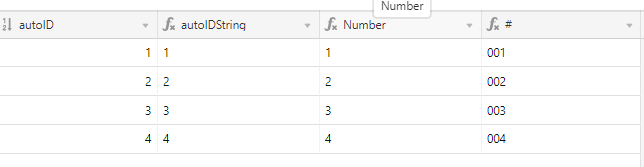
Using RIGHT() wasn’t quite that simple, haha. I had to first convert the nubmer to a string using the Arrayjoin() funciton. Then use a combination of MIN() and LEN(), because RIGHT() doesn’t work if the input string is shorter than the number of characters you are asking for. But I for the result I was looking for :slightly_smiling_face:

autoIDString
ARRAYJOIN({autoID})

Number
RIGHT(autoIDString,MIN(LEN(autoIDString),3))

IF({Number}, IF({Number}<10, “00” & {Number}, IF({Number}<100, “0” & {Number}, {Number})))


Justin_Barrett
Forum|alt.badge.img+21

Using RIGHT() wasn’t quite that simple, haha. I had to first convert the nubmer to a string using the Arrayjoin() funciton. Then use a combination of MIN() and LEN(), because RIGHT() doesn’t work if the input string is shorter than the number of characters you are asking for. But I for the result I was looking for :slightly_smiling_face:

autoIDString
ARRAYJOIN({autoID})

Number
RIGHT(autoIDString,MIN(LEN(autoIDString),3))

IF({Number}, IF({Number}<10, “00” & {Number}, IF({Number}<100, “0” & {Number}, {Number})))


There are a few hiccups in your attempt to add leading zeroes…

The ARRAYJOIN() function is designed to work on arrays, but the {autoID} field returns a number. I get the impression you just want to convert that number to a string, so all you need for that is to concatenate the number with an empty string:

autoID & ""

The rest of the process to add leading zeroes to the number can also be greatly simplified. You only need a single formula. Here’s what I often use when that’s needed.

REPT("0", 3-LEN(autoID & "")) & autoID

Broken down, that takes the autoID value, converts it to a string, subtracts the length of that string from 3 to see how many leading zeroes are needed, repeats the “0” character that many times, and concatenates that with the original number.


Forum|alt.badge.img+18
  • Inspiring
  • May 29, 2020

There are a few hiccups in your attempt to add leading zeroes…

The ARRAYJOIN() function is designed to work on arrays, but the {autoID} field returns a number. I get the impression you just want to convert that number to a string, so all you need for that is to concatenate the number with an empty string:

autoID & ""

The rest of the process to add leading zeroes to the number can also be greatly simplified. You only need a single formula. Here’s what I often use when that’s needed.

REPT("0", 3-LEN(autoID & "")) & autoID

Broken down, that takes the autoID value, converts it to a string, subtracts the length of that string from 3 to see how many leading zeroes are needed, repeats the “0” character that many times, and concatenates that with the original number.


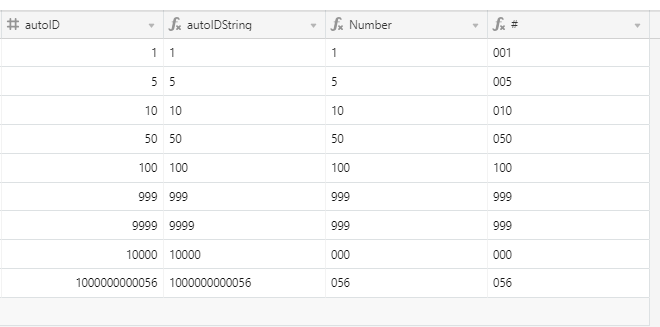
You show great refinement in your work! I never considered using the REPT() function. I did have to make one adjustment. You can’t just feed autoID in, because once the numbers get above 5 digits long the REPT function returns an error. I am guessing this has to do with it’s ability to take negative values. Instead I used the Number field, which already reduces the auto ID to a maximum of 3 digits. Of course, this could be done in a single formula, but I like to break them out at first:

autoIDString
{autoID} & “”

Number
RIGHT(autoIDString,MIN(LEN(autoIDString),3))

REPT(“0”, 3-LEN(Number& “”)) & Number

Here is the single formula version

REPT(“0”, 3-LEN(RIGHT({autoID} & “”,MIN(LEN({autoID} & “”),3))& “”)) & RIGHT({autoID} & “”,MIN(LEN({autoID} & “”),3))


Justin_Barrett
Forum|alt.badge.img+21

You show great refinement in your work! I never considered using the REPT() function. I did have to make one adjustment. You can’t just feed autoID in, because once the numbers get above 5 digits long the REPT function returns an error. I am guessing this has to do with it’s ability to take negative values. Instead I used the Number field, which already reduces the auto ID to a maximum of 3 digits. Of course, this could be done in a single formula, but I like to break them out at first:

autoIDString
{autoID} & “”

Number
RIGHT(autoIDString,MIN(LEN(autoIDString),3))

REPT(“0”, 3-LEN(Number& “”)) & Number

Here is the single formula version

REPT(“0”, 3-LEN(RIGHT({autoID} & “”,MIN(LEN({autoID} & “”),3))& “”)) & RIGHT({autoID} & “”,MIN(LEN({autoID} & “”),3))


I get where you’re going now, and can offer one more optimized version of your formula.

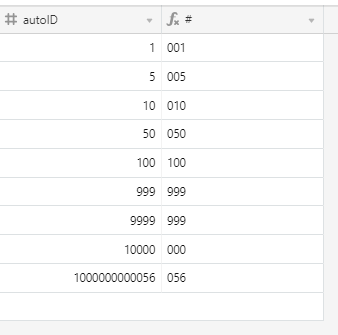
REPT("0", 3 - LEN(MOD(autoID, 1000) & "")) & MOD(autoID, 1000)

The MOD(autoID, 1000) portion automatically reduces the number—no matter how large—to no more than three digits: the remainder after dividing the number by 1000.

On a side note, you used Number & "" in part of your formula, but the concatenation with the empty string isn’t necessary there. That’s only required to take a non-string value and turn it into a string, but your {Number} field already created a string (the clue: left justification of the output means it’s a string; right-justification, as in the {autoID} field, means it’s a number).


  • Known Participant
  • June 1, 2020

I get where you’re going now, and can offer one more optimized version of your formula.

REPT("0", 3 - LEN(MOD(autoID, 1000) & "")) & MOD(autoID, 1000)

The MOD(autoID, 1000) portion automatically reduces the number—no matter how large—to no more than three digits: the remainder after dividing the number by 1000.

On a side note, you used Number & "" in part of your formula, but the concatenation with the empty string isn’t necessary there. That’s only required to take a non-string value and turn it into a string, but your {Number} field already created a string (the clue: left justification of the output means it’s a string; right-justification, as in the {autoID} field, means it’s a number).


This is perfect! Thanks!!


  • New Participant
  • September 15, 2020

Hey @Justin_Barrett, thank you for your amazing work here !
I’m using this method to make a pallet tracking base, where there is pallet 1 of 2, 2 of 2 etc…
The issue I have is there is almost 12k pallet to track and each one is created via a script from the customer database and I won’t be on the field to do the trick and each pallet must be linked to the controler manually. (I’m fairly new to the airtable world) I tried some sort of wizzardry with zappier to automatically link every new record created, but it doesn’t works.

Is there a way to easilly link every new record created to the controler ?


Justin_Barrett
Forum|alt.badge.img+21
  • Author
  • Inspiring
  • September 19, 2020

Hey @Justin_Barrett, thank you for your amazing work here !
I’m using this method to make a pallet tracking base, where there is pallet 1 of 2, 2 of 2 etc…
The issue I have is there is almost 12k pallet to track and each one is created via a script from the customer database and I won’t be on the field to do the trick and each pallet must be linked to the controler manually. (I’m fairly new to the airtable world) I tried some sort of wizzardry with zappier to automatically link every new record created, but it doesn’t works.

Is there a way to easilly link every new record created to the controler ?


Welcome to the community, @Thibaut_FERRI! :grinning_face_with_big_eyes: I’m a little less inclined to use this system these days thanks to Airtable’s scripting and automation features, but it’ll still work if you want to use it. In terms of linking every new record to the control record, this can be done using Airtable’s automation system.

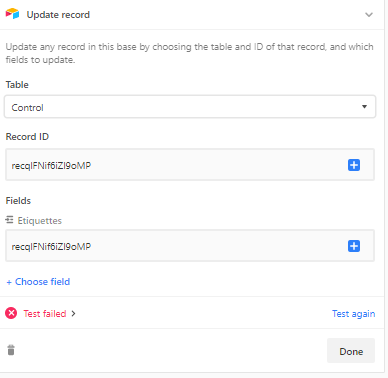
The trigger will be the creation of a new record. The action step will be an “Update record” action, where you update that record with the link to the desired control record. You can get the control record’s ID by right-clicking on it and choosing “Copy record URL”. In the automation update step, paste that full URL into the link field you’re updating, then delete everything except the actual record ID (e.g. recXXXXXXXXXXXXXX). Save and activate the automation, and all new records will auto-link to the control record.


  • New Participant
  • September 21, 2020

Thank you very much, great community ! :grinning_face_with_big_eyes:
I still have a little issue with this one :

I’d like to update the record in the control table when a record is created in the Etiquettes table. as you said I’ve used the control record’s ID in the record id field, but what to put in the fields “etiquette field” ?
On the etiquette table, the link to control is named “Link2Control”

Cheers guys, thank’s for the support =)


Justin_Barrett
Forum|alt.badge.img+21
  • Author
  • Inspiring
  • September 22, 2020

Thank you very much, great community ! :grinning_face_with_big_eyes:
I still have a little issue with this one :

I’d like to update the record in the control table when a record is created in the Etiquettes table. as you said I’ve used the control record’s ID in the record id field, but what to put in the fields “etiquette field” ?
On the etiquette table, the link to control is named “Link2Control”

Cheers guys, thank’s for the support =)


The value in the “Record ID” field of the action should be the record ID from the record that triggered the automation. Delete that current value, then click the + symbol on the right end, and pick the triggering record’s record ID.


  • New Participant
  • September 22, 2020

Thank you for your time, patience and explanations.
I figured I went the other way around (tried to update the control record instead of the created one).
I’m still struggling a bit with english as it’s not my mothertongue.

Once again, thank you for your work.
Cheers from the land of the baguette.


  • New Participant
  • December 18, 2020

Hi @Justin_Barrett, this post is amazing.

I’m really new to Airtable and what you explain here is pretty advance to me. Although, I was able to understand what you explain I’m far to implement it to a specific use case I want.

I would really appreciate if you could give some directions with the following.

How can I modify your base (fixed length option) to have a sequence number that resets for every new year?

For example
2020-001
2020-002
2020-003

2021-001
2021-002

It is for an invoice generator I would like to create using Airtable and Google docs templates.

I did dive into this post as well (Sequential Number, Resetting Daily ) but, as I said, my knowledge is far from being able to update these bases with success.

Thank you very much for your help!


  • New Participant
  • December 19, 2020

Hey @Justin_Barrett. You can omit my previous message. I figured it out but replacing the Base field in the main table with a formula that extracts the year from a “Created date” field and everything works as desired. Thanks again for sharing this post.


Justin_Barrett
Forum|alt.badge.img+21

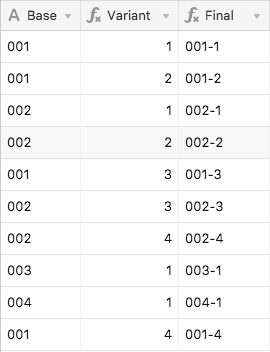
It’s been a little more than two years since I wrote the original post that kicked off this thread. While it was fun playing with that solution (and even using variations of it for other things), and gratifying to hear how it has helped other Airtable users, I feel the need to make something clear:

I no longer recommend the method described in this thread

Why not? Simply because there are far better ways of doing this now that weren’t available at the time I developed the original solution. Today I’d recommend an automation that runs a script. Yes, there will be a slight delay while waiting for the automation to run, but it’s still far more flexible and far less error-prone (provided that the script is written well) than my original solution.

One of these days I might put together a sample script that could be used in an automation to do this, but I’m afraid that’s pretty far down my priority list. If anyone else wants to share their scripts here, feel free!


  • New Participant
  • August 1, 2021

It’s been a little more than two years since I wrote the original post that kicked off this thread. While it was fun playing with that solution (and even using variations of it for other things), and gratifying to hear how it has helped other Airtable users, I feel the need to make something clear:

I no longer recommend the method described in this thread

Why not? Simply because there are far better ways of doing this now that weren’t available at the time I developed the original solution. Today I’d recommend an automation that runs a script. Yes, there will be a slight delay while waiting for the automation to run, but it’s still far more flexible and far less error-prone (provided that the script is written well) than my original solution.

One of these days I might put together a sample script that could be used in an automation to do this, but I’m afraid that’s pretty far down my priority list. If anyone else wants to share their scripts here, feel free!


Thank you for the formula-based solution.
I am looking forward to your script-based solution in a near future. Hope you will share your wisdom with us!


Forum|alt.badge.img+15
  • Known Participant
  • October 7, 2021

It’s been a little more than two years since I wrote the original post that kicked off this thread. While it was fun playing with that solution (and even using variations of it for other things), and gratifying to hear how it has helped other Airtable users, I feel the need to make something clear:

I no longer recommend the method described in this thread

Why not? Simply because there are far better ways of doing this now that weren’t available at the time I developed the original solution. Today I’d recommend an automation that runs a script. Yes, there will be a slight delay while waiting for the automation to run, but it’s still far more flexible and far less error-prone (provided that the script is written well) than my original solution.

One of these days I might put together a sample script that could be used in an automation to do this, but I’m afraid that’s pretty far down my priority list. If anyone else wants to share their scripts here, feel free!


I am looking forward to the script :slightly_smiling_face:


Justin_Barrett
Forum|alt.badge.img+21
  • Author
  • Inspiring
  • October 13, 2021

Soooooooo…I’m starting to work on a script. For the first iteration, it’s going to be one that’s run manually from a Scripting app, but it’ll have configuration options so you can use it in different ways. This might eventually morph into a custom app, but that’s a ways down the road. Baby steps first!

Later on I might mess with converting it into something that will work in an automation, but that will mean more manual tweaks for users to configure it, plus more steps (i.e. possibly more fields) to get the trigger working correctly.


Forum|alt.badge.img+18
  • Inspiring
  • December 4, 2021

Soooooooo…I’m starting to work on a script. For the first iteration, it’s going to be one that’s run manually from a Scripting app, but it’ll have configuration options so you can use it in different ways. This might eventually morph into a custom app, but that’s a ways down the road. Baby steps first!

Later on I might mess with converting it into something that will work in an automation, but that will mean more manual tweaks for users to configure it, plus more steps (i.e. possibly more fields) to get the trigger working correctly.


Looking forward to it!

Lots of my use case involve numbering based on different single select, for example
Incoming_category = Converting C1,C2,C3,C4,C5
Incoming_category = Manufacturing M1, M2, M3, M4, M5


Justin_Barrett
Forum|alt.badge.img+21
  • Author
  • Inspiring
  • December 13, 2021

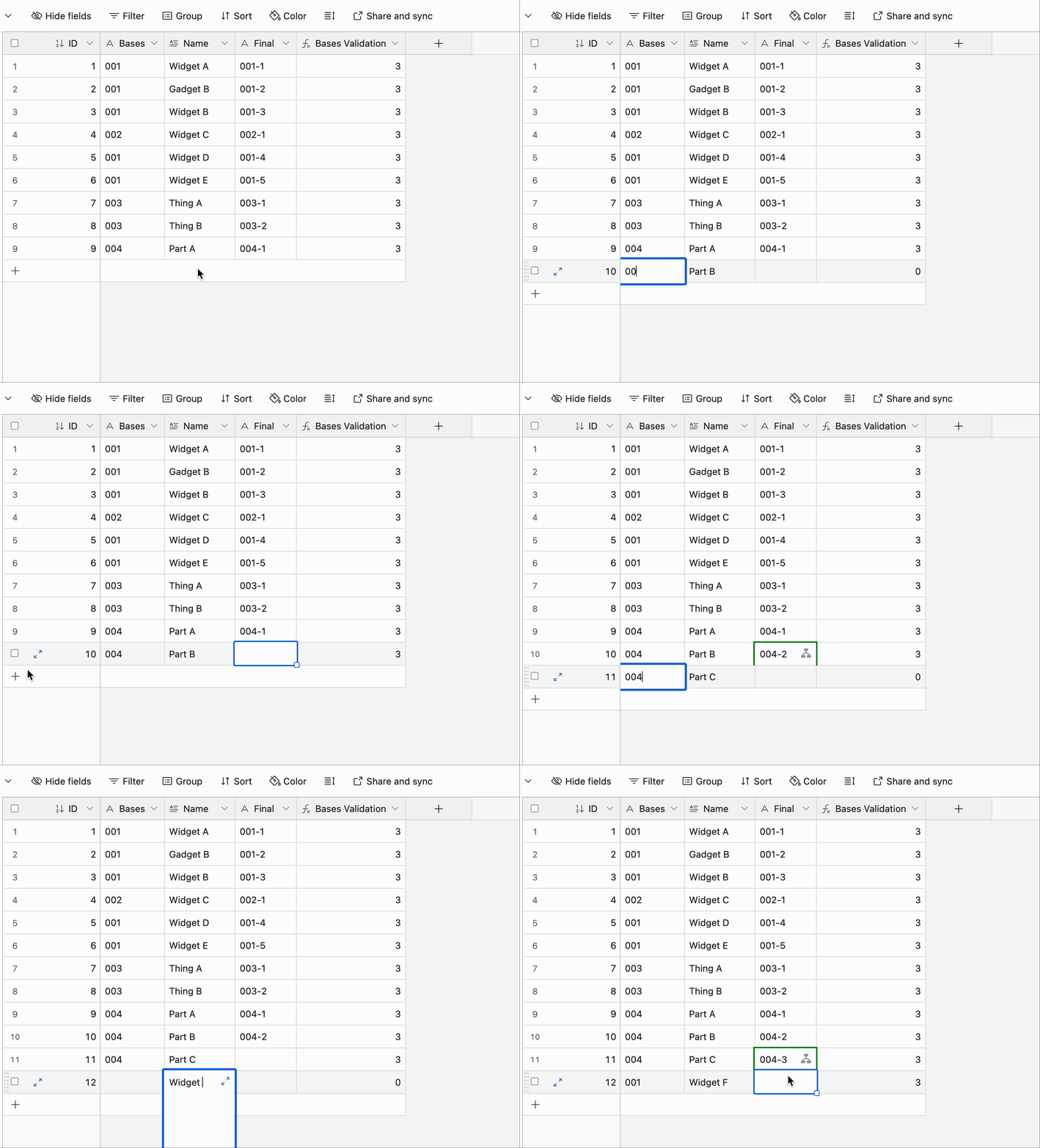
Here’s the first version of the script:

Here’s a video showing how to set it up and how it works:

I’ll start working on an automation version next. Stay tuned!


Justin_Barrett
Forum|alt.badge.img+21
  • Author
  • Inspiring
  • December 19, 2021

I don’t know why I didn’t think of this earlier, but it’s possible to automate this without using a script.

I’ll record a video demo next week, but below you’ll find a quick rundown of the steps for now. The test that I ran was with the same single-select field that I used in the demo video above. Because of this, the automation setup was pretty easy, but it will require more careful setup of the automation trigger depending on what type of field needs to drive the automation. I’ll run more tests next week and share what I find. Anyway, here’s what I got to work using a single-select field:

  • Create an automation that triggers when the single-select field isn’t empty.
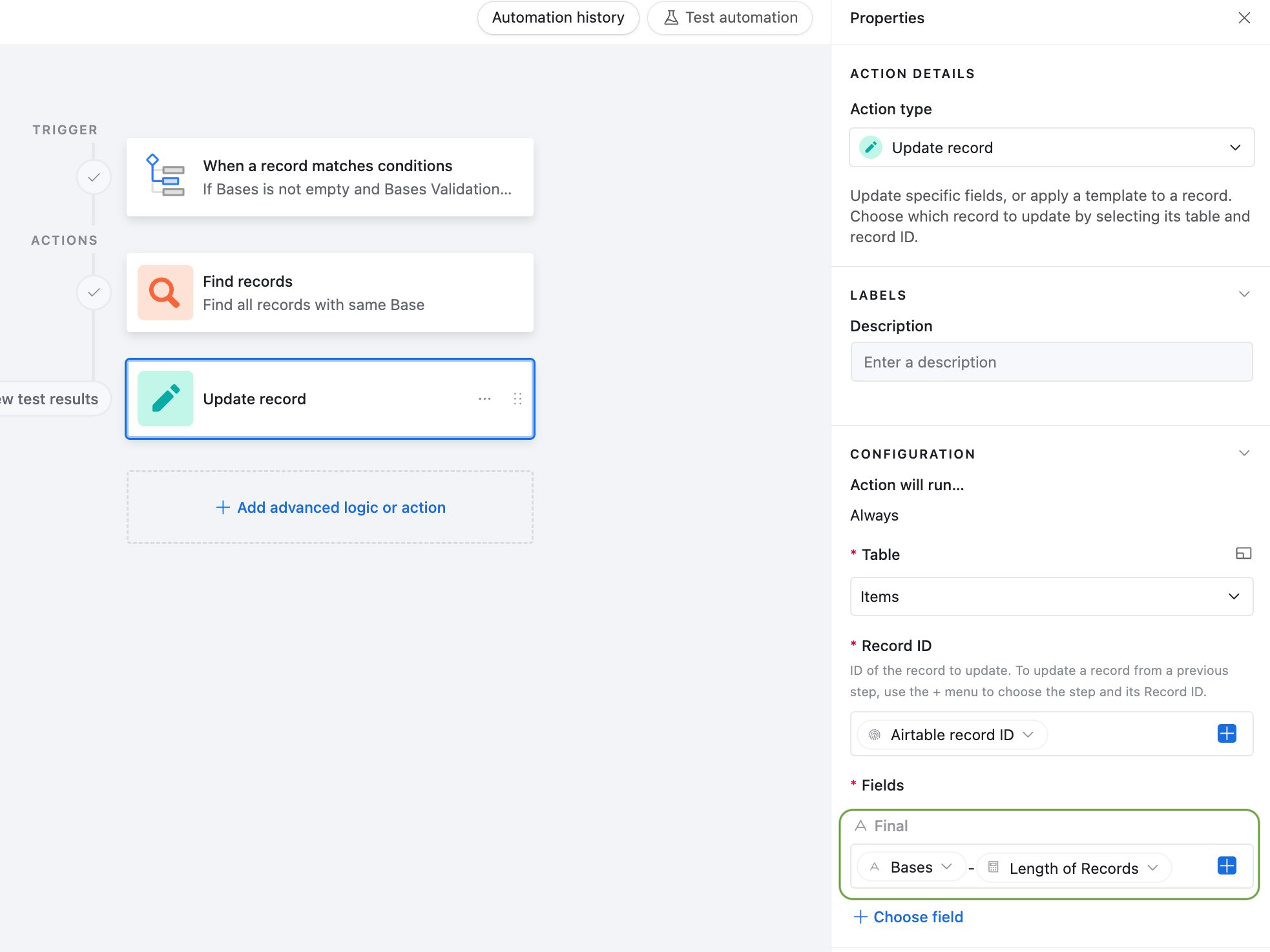
  • The first action is a “Find records” action. Set it to find records based on a condition, with the condition being that the single-select field matches the option chosen by the triggering record. (You’ll need to use the dynamic condition feature to pick this value from the trigger step.)
  • The next (and final) action is an “Update record” action, where you’ll update the desired field (I stuck with the {Sequence ID} name as in my video above) in the triggering record with the total number of records found from the previous step (under “List properties” for the collection of records, insert the “Length” property).

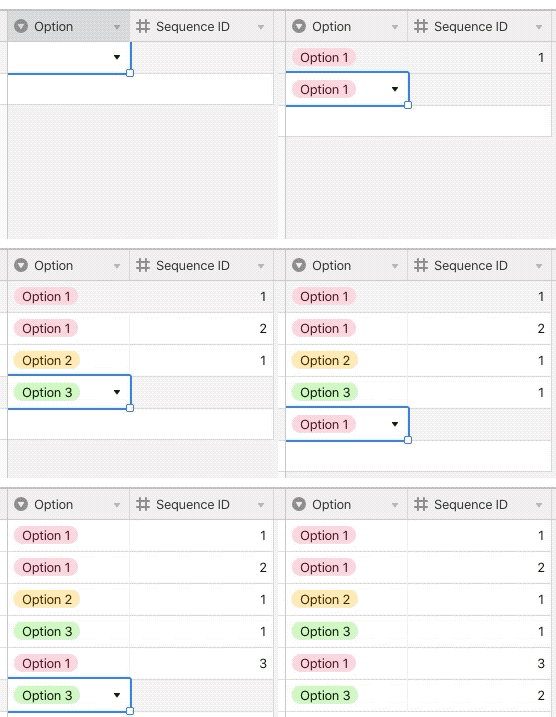
The first time that an entry is selected, the “Find records” action will only find one record, so a 1 is inserted. The next time that same entry is selected, two records will be found, so a 2 will be inserted, and so on.

The only downside is that records can’t be deleted. At least one person in the discussion above expressed an interest in reusing an old number, but unfortunately that wouldn’t work with this solution. Deleting an old record will throw off the count, and the current highest number for a given item will be repeated when that item appears again. If you need to “remove” a record for some reason, you’ll have to filter it out of the view somehow (a checkbox field named {Archive} maybe?).

A simple script that counts records to find the number of the most recent one would produce the same duplicated-number result if records are deleted because there’s no way of tracking deleted records. However, if you instead “archive” records instead of deleting them—by using a system like I described above—a script could identify such archived records. In that light, perhaps a script version of an automation could have an option to allow the IDs of archived records to be reused. I’ll mull that over for a future project.


  • New Participant
  • January 29, 2022

I don’t know why I didn’t think of this earlier, but it’s possible to automate this without using a script.

I’ll record a video demo next week, but below you’ll find a quick rundown of the steps for now. The test that I ran was with the same single-select field that I used in the demo video above. Because of this, the automation setup was pretty easy, but it will require more careful setup of the automation trigger depending on what type of field needs to drive the automation. I’ll run more tests next week and share what I find. Anyway, here’s what I got to work using a single-select field:

  • Create an automation that triggers when the single-select field isn’t empty.
  • The first action is a “Find records” action. Set it to find records based on a condition, with the condition being that the single-select field matches the option chosen by the triggering record. (You’ll need to use the dynamic condition feature to pick this value from the trigger step.)
  • The next (and final) action is an “Update record” action, where you’ll update the desired field (I stuck with the {Sequence ID} name as in my video above) in the triggering record with the total number of records found from the previous step (under “List properties” for the collection of records, insert the “Length” property).

The first time that an entry is selected, the “Find records” action will only find one record, so a 1 is inserted. The next time that same entry is selected, two records will be found, so a 2 will be inserted, and so on.

The only downside is that records can’t be deleted. At least one person in the discussion above expressed an interest in reusing an old number, but unfortunately that wouldn’t work with this solution. Deleting an old record will throw off the count, and the current highest number for a given item will be repeated when that item appears again. If you need to “remove” a record for some reason, you’ll have to filter it out of the view somehow (a checkbox field named {Archive} maybe?).

A simple script that counts records to find the number of the most recent one would produce the same duplicated-number result if records are deleted because there’s no way of tracking deleted records. However, if you instead “archive” records instead of deleting them—by using a system like I described above—a script could identify such archived records. In that light, perhaps a script version of an automation could have an option to allow the IDs of archived records to be reused. I’ll mull that over for a future project.


Hello Justin , Could you also share this automation step as video , please? I tried to follow the steps that you documented , but it didn’t work. I’m totally newbie to Airtable. Thanks a lot for your sharing.


Justin_Barrett
Forum|alt.badge.img+21
  • Author
  • Inspiring
  • January 30, 2022

Hello Justin , Could you also share this automation step as video , please? I tried to follow the steps that you documented , but it didn’t work. I’m totally newbie to Airtable. Thanks a lot for your sharing.


Welcome to the community, @Thet_Paing! :grinning_face_with_big_eyes: Thanks for the reminder. I will post a video about this eventually, but the timing is unknown. Client work is keeping me extremely busy. I do want to post more videos to my YouTube channel—including demos for stuff like this—but I’m seriously struggling to find the time and energy for that. Your patience is appreciated!


  • New Participant
  • February 3, 2022

Welcome to the community, @Thet_Paing! :grinning_face_with_big_eyes: Thanks for the reminder. I will post a video about this eventually, but the timing is unknown. Client work is keeping me extremely busy. I do want to post more videos to my YouTube channel—including demos for stuff like this—but I’m seriously struggling to find the time and energy for that. Your patience is appreciated!


Hello Justin, first of all thank you for the great solution to solve this via automation.
I´ve two more questions. Does it need a single-select field as trigger? And is there a way to fill in the ID with automations for already existing records?


Justin_Barrett
Forum|alt.badge.img+21
  • Author
  • Inspiring
  • February 4, 2022

Hello Justin, first of all thank you for the great solution to solve this via automation.
I´ve two more questions. Does it need a single-select field as trigger? And is there a way to fill in the ID with automations for already existing records?


Welcome to the community, @Timo_Germer! :grinning_face_with_big_eyes:

Any data can be a trigger, but in this case a single-select field works well because the data is fully there when the field changes and triggers the automation. If you’re manually typing and use “When record updated” as your trigger, the automation will trigger on the first few characters because that’s technically an update to the record (it doesn’t wait for you to finish typing). One way around this is to use a form field to add records because forms add the field data all at once, but that might not be ideal in all use cases. There are other ways to work around this, but they start getting messy with extra fields. That’s why I tend to prefer single-select fields as the drivers.

This is doable, but only by running a script as part of the automation, which requires your base to be in a Pro-plan workspace or higher. I’ve got such an automation script on my to-do list, but I honestly don’t know when I’ll get to it.


  • New Participant
  • February 15, 2022

Welcome to the community, @Timo_Germer! :grinning_face_with_big_eyes:

Any data can be a trigger, but in this case a single-select field works well because the data is fully there when the field changes and triggers the automation. If you’re manually typing and use “When record updated” as your trigger, the automation will trigger on the first few characters because that’s technically an update to the record (it doesn’t wait for you to finish typing). One way around this is to use a form field to add records because forms add the field data all at once, but that might not be ideal in all use cases. There are other ways to work around this, but they start getting messy with extra fields. That’s why I tend to prefer single-select fields as the drivers.

This is doable, but only by running a script as part of the automation, which requires your base to be in a Pro-plan workspace or higher. I’ve got such an automation script on my to-do list, but I honestly don’t know when I’ll get to it.


@Justin_Barrett Thank you for the quick reply.

I´ve one more question: When I set up the automation, I ran into a problem. The action “Find Records” is limited to 100 records. Every record beyond that gets the same result (100).
Since we have significantly more records, I am looking for a solution that is not limited to 100 records. Is there an easy way to set this up?


Justin_Barrett
Forum|alt.badge.img+21
  • Author
  • Inspiring
  • February 15, 2022

@Justin_Barrett Thank you for the quick reply.

I´ve one more question: When I set up the automation, I ran into a problem. The action “Find Records” is limited to 100 records. Every record beyond that gets the same result (100).
Since we have significantly more records, I am looking for a solution that is not limited to 100 records. Is there an easy way to set this up?


@Timo_Germer Not without using a script. Scripts have no limit on how many records they can retrieve (aside from memory limits, of course, but that’s not an issue I’ve heard of anyone encountering).