


This walkthrough will show you how to:
- Use the ‘Generate Structured Data with AI’ action to extract data from multiple fields
- Use that array in a Repeating Group to create multiple records in a different table
Allowing you to turn data like this, which:
- Tries to do too much in a single row (multiple children’s data in a single record instead of one record each)
- Important info stuck in free-form text fields (favorite toy and age should be in different fields)

Into this, where each child is its own record and the data is organized in the correct fields:
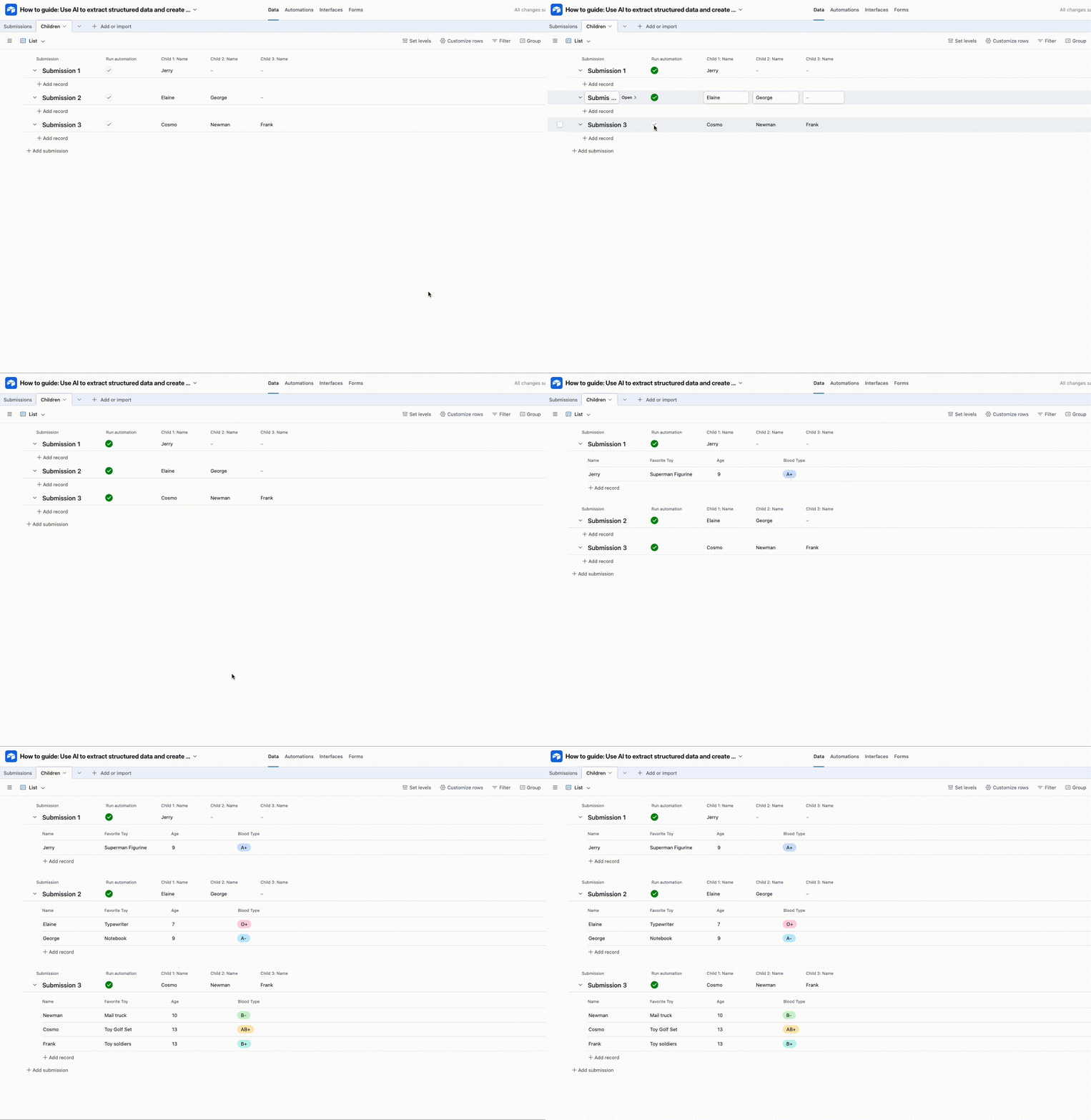
Note how we’ve extracted the favorite toy and the age from the same text field!
Here’s the completed example base for reference, and we can easily adapt this to extract data from long blocks of text, PDFs, etc.
1. Set up your automation trigger
To start with, we’ll create a checkbox field that we’ll use to trigger the automation on each record:
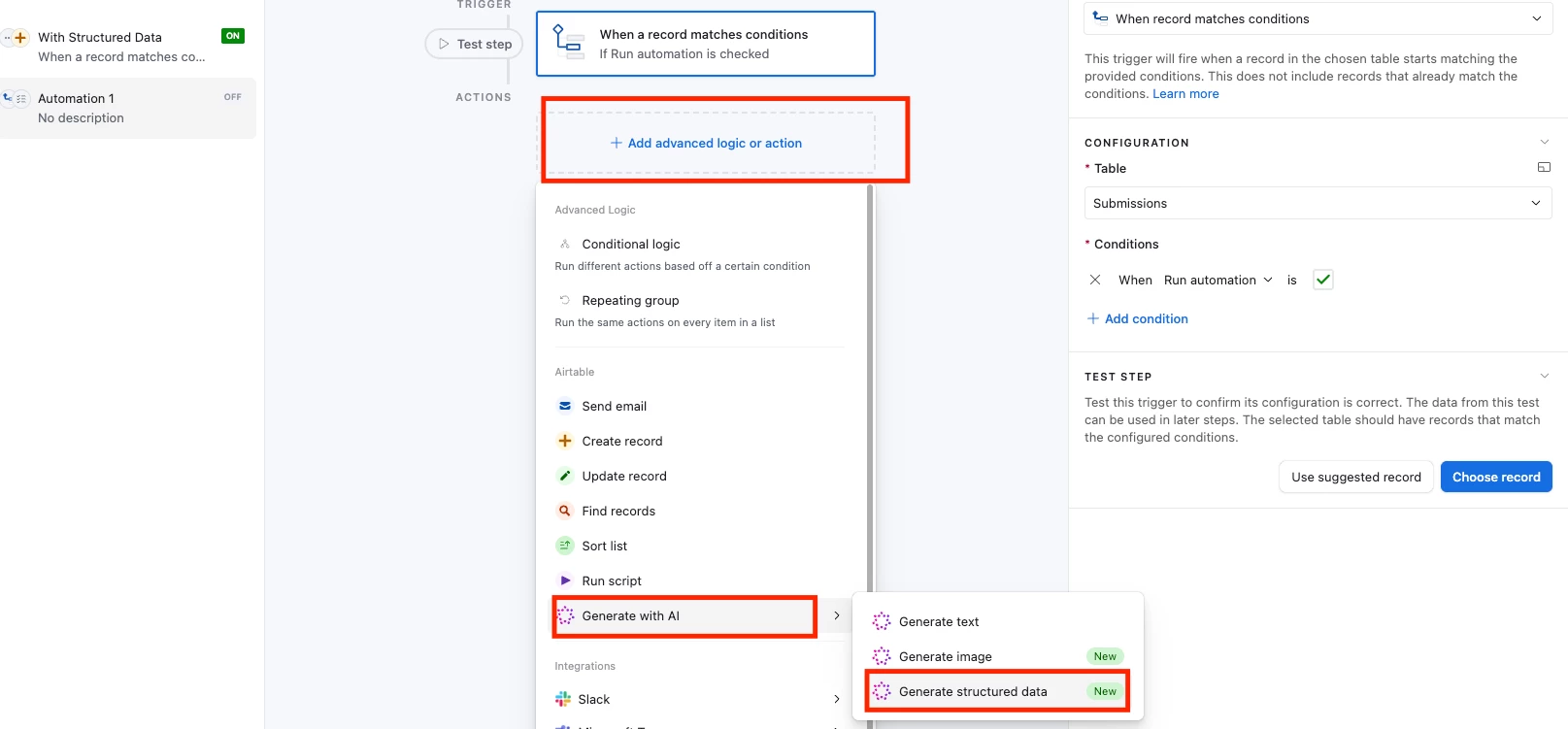
2. Add a ‘Generate structured data’ step by clicking ‘Add advanced logic or action’, hovering over ‘Generate with AI’ and then selecting it
3. Populate the prompt
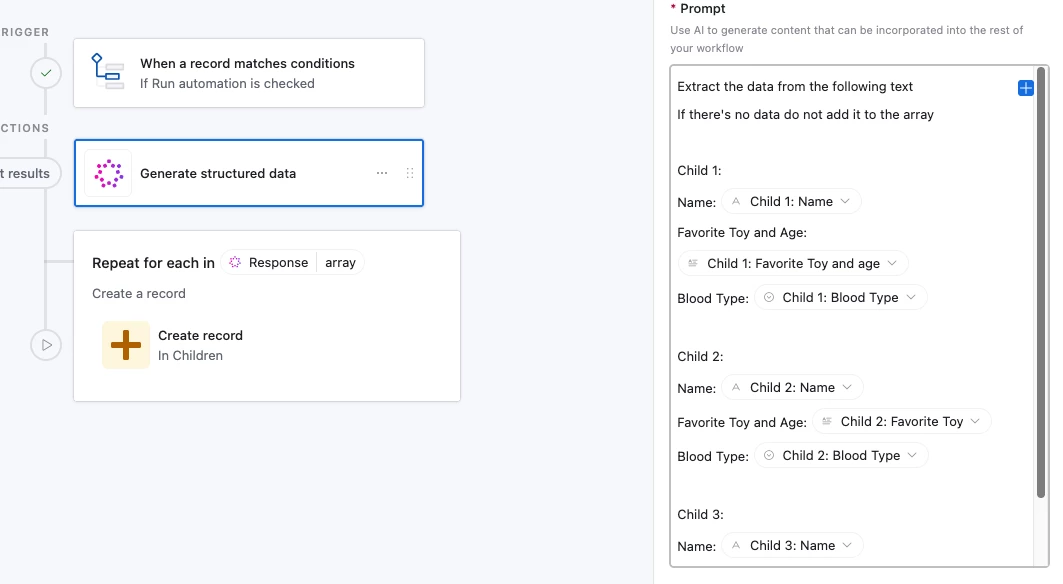
Here’s the prompt we’re going to use:
Extract the data from the following text

If there's no data do not add it to the array
And below it, we’ll add each child’s data:
4. Set up the output schema
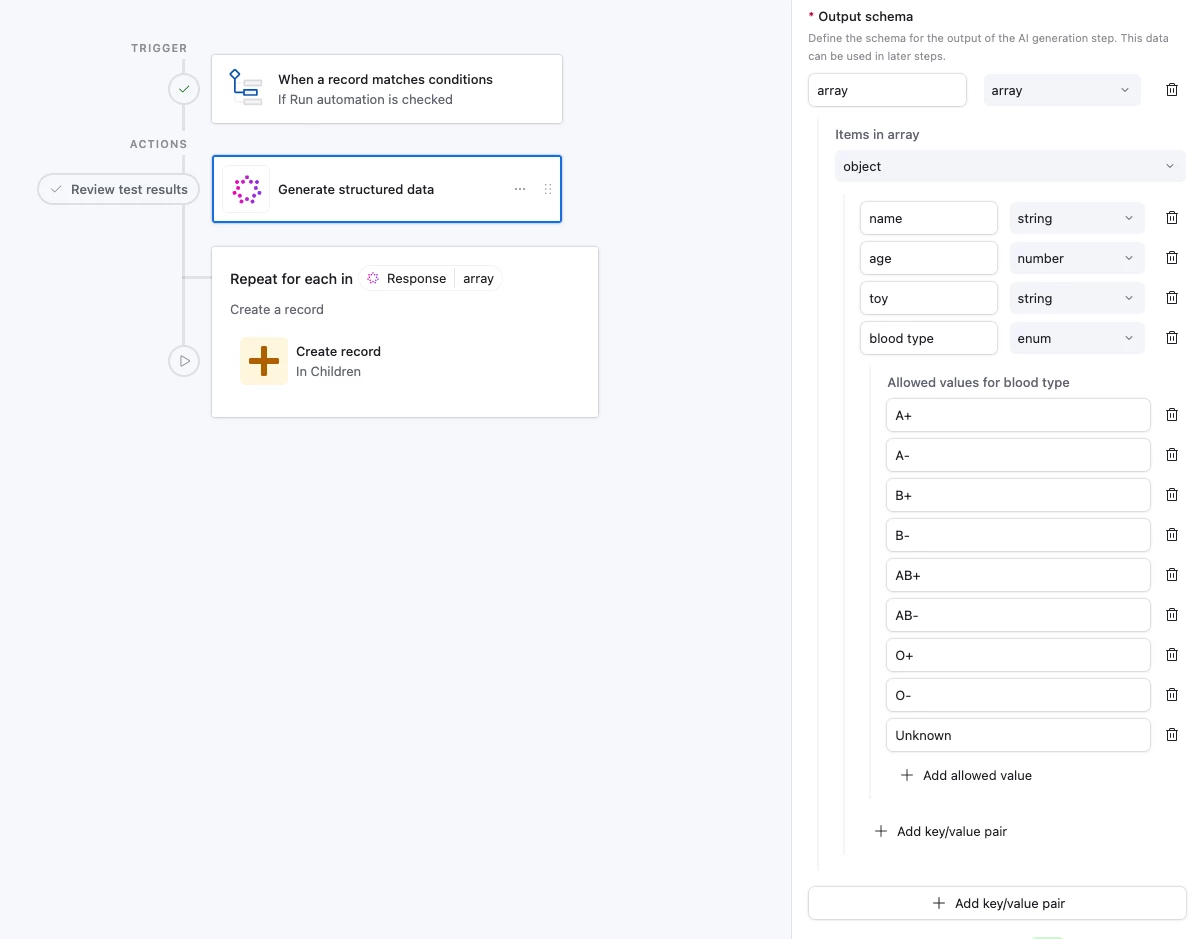
Here we’re going to tell the AI how we want our output to look
Because we’re consolidating data for multiple children, we ask the AI to return an array of objects where each object represents one child
We then add in one key/value pair per piece of data that we’re going to be using later:
- Name
- Age
- Toy
- Blood Type
We specify that Age should be a number, while Name and Toy can be strings. This helps keep the data clean and usable when we create records
For ‘Blood Type’, since we know there are only 8 blood types, we use the type ‘enum’, which allows us to define the possible values that might show up. (We leave an ‘Unknown’ in there in case something goes wrong and it can’t detect the blood type, allowing it to output ‘Unknown’ instead of defaulting to one of the actual values)
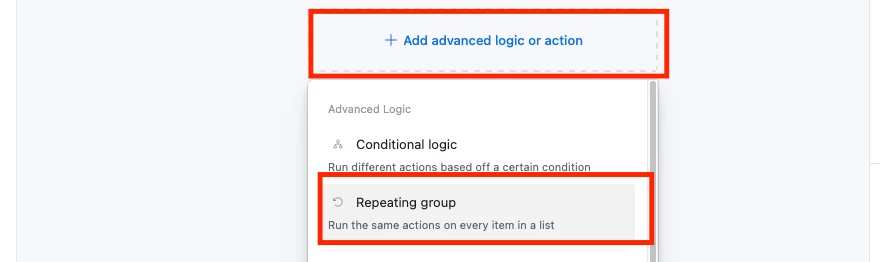
5. Add a Repeating Group
Click ‘Add advanced logic or action’, then select ‘Repeating group’
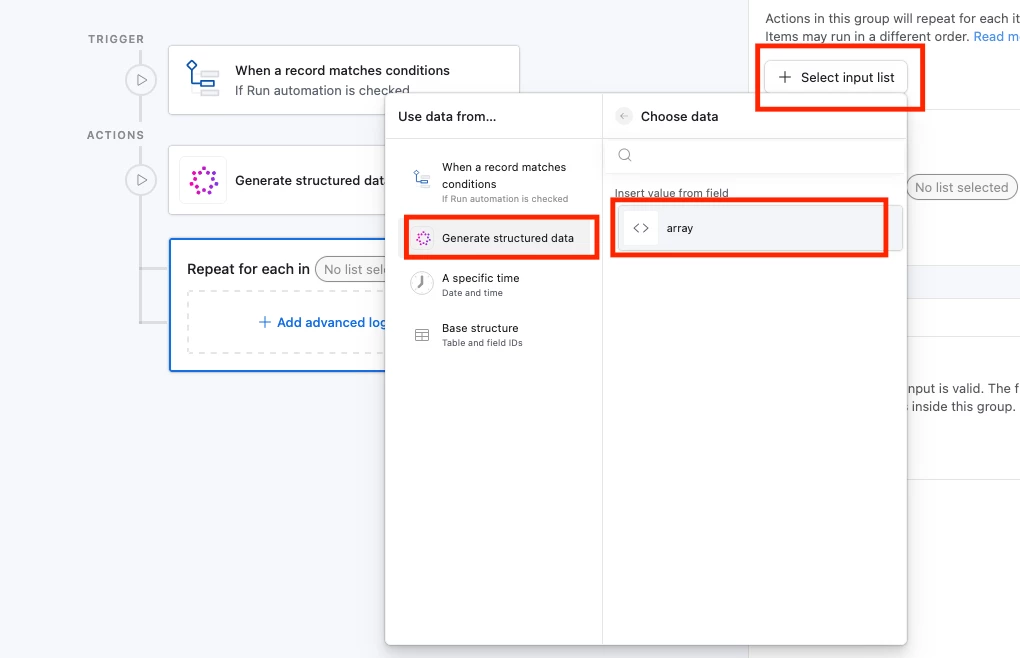
6. Use the AI output for the Repeating Group list
Click ‘Select Input List’, followed by the AI step, then the ‘array’ value
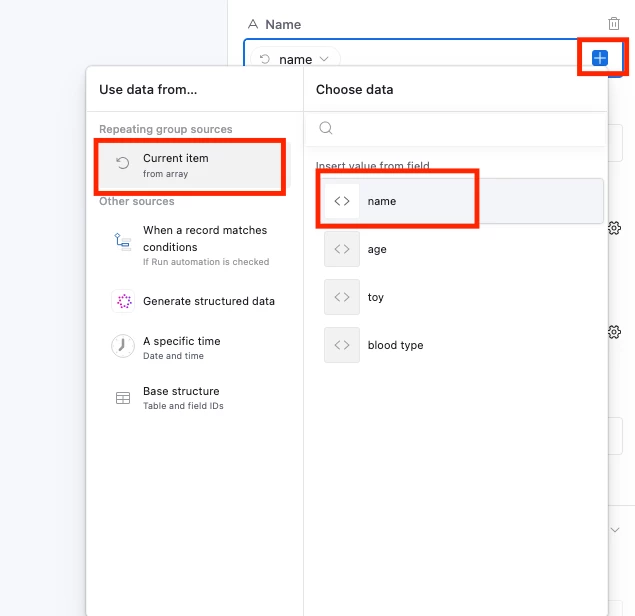
7. Add a ‘Create Record’ step into the Repeating Group and add in your data
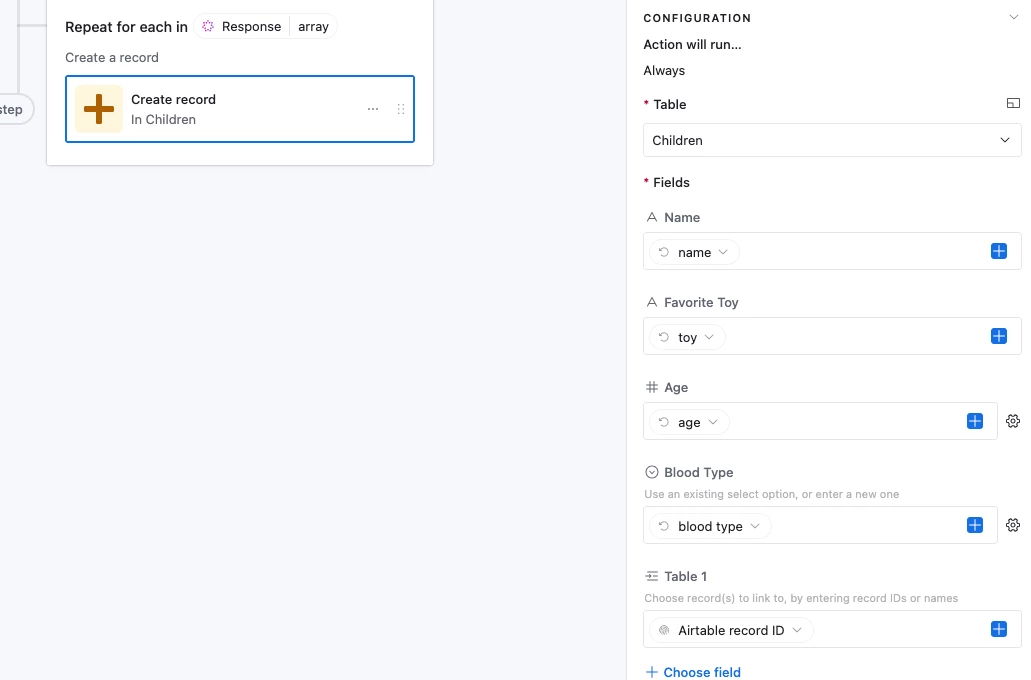
Here we’ll select the fields we want to populate, and add in the AI output data for each field by clicking the blue + icon, and then selecting the appropriate value from the current repeating group item
And our end product should look like this:
And that’s it! Feel free to leave a question if you have problems setting this up and I’ll see what I can do to help!
===
This example base is inspired by a question from another thread where they had a form which allowed users to submit multiple children’s details at once and they needed the data split out.
It seems like this method effectively lets us get around the issue where we can’t create linked records via a form submission without using any scripting logic, which is nice!
---
We can technically do this with a plain old ‘Generate Text’ step as well and you can find an example of that here
We do this by tweaking the prompt to output JSON, use a ‘Run a script’ action to parse that, and then use the result in a Repeating Group. It works, but it’s more complicated for the same result, and so the example is really just an academic thing in case anyone’s curious on how else we can do it
---
🟢 I’m available for hire!