

Solved

Confused about Airtable extension types (Scripting vs Custom Extensions vs Interfaces) - what to use for reusable workflows?

  • April 27, 2026
  • 2 replies
  • 34 views

Alexey_Gusev
Forum|alt.badge.img+25

Hello.

I'm a bit confused about the different types of extensions in Airtable and can't quite figure out which one makes sense for my use case. I already know how to solve this inside a specific base using older approaches, but now I want something more reusable across different bases and aligned with the newer tools.

Previously, there were:

  1. Airtable Scripting Extensions - easy to reuse by copy-pasting code, but a bit too limited in terms of interactivity.
  2. Airtable Extensions (Blocks) - can be built from examples, require Node, and can be distributed across bases via remotes and CLI.

Now we have:

  1. Custom extensions, available via
    https://airtable.com/create/extensions
  2. Interface Extensions, which can be created via prompt.

I have two tasks where I’m not sure what’s the right approach. The docs don’t help much because I’m not even sure which section I should be reading.

a) Fairly simple: select a table, pick a text field, and run a few transformations (truncate, capitalize, etc.).
Ideally, I’d like to also see which fields were already processed and which still need it.

I’ve done this before using (2), but for every new base I have to spin up Node locally, remember the whole setup (which I only touch once in a while), deal with CLI, remotes, etc.

I also tried doing it with Interface (4), but switching tables requires going into Edit mode and changing the source manually. Maybe there’s a way to add a dropdown for table selection — I haven’t figured that out yet. Also not sure how reusable Interfaces are across bases.

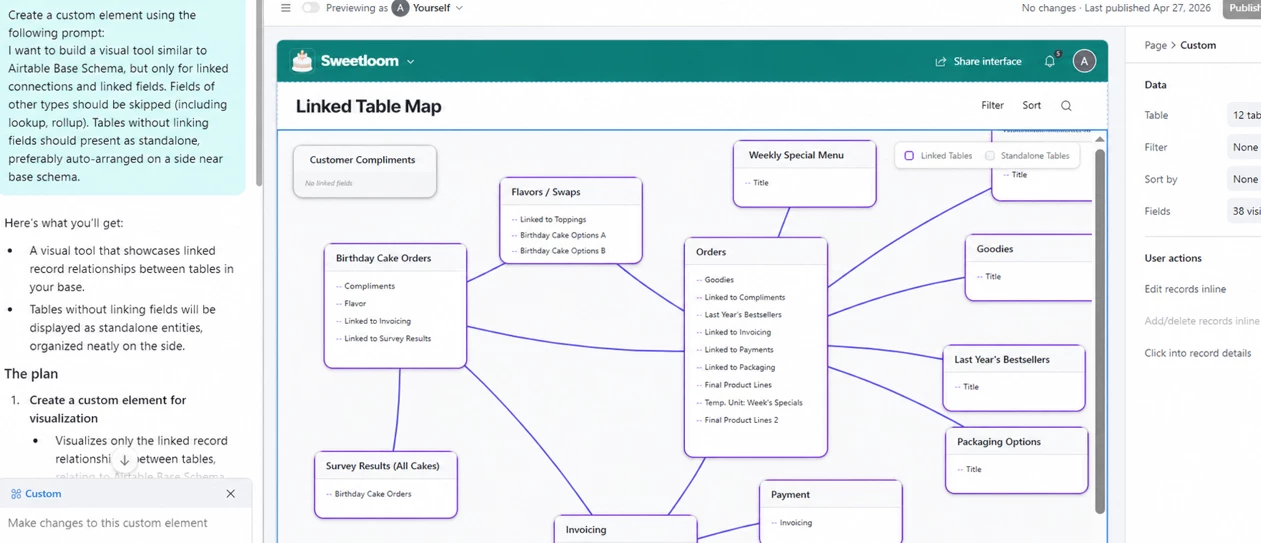
b) I made a small tweak to the Database Schema extension to only show linked fields, which helps a lot when working with large bases (100+ fields per table).
I tried moving that logic into (3) Custom extensions, but ran into Node-related errors, and the original example I used doesn’t seem to exist there.

Would appreciate a quick nudge in the right direction, or a link that explains how all these extension types fit together.

Best answer by anthonyXRay

Scripting Extensions: These are the lightweight and reusable tools that you can just copy and paste script text into any base without the need for a command line interface, so very simple data modification.

Custom Extensions: These have more of the look of an app and have more interactivity.  They come with the Blocks SDK/Node overhead that you are familiar with already.

Interface Extensions: These are the newer and more AI-assisted advancement.  They are tied to a specific base and interface which means cross-base reuse is limited at the moment.


For what you’re describing, something with field transformations and tweaked schema viewers, scripting extensions are probably the path you’ll want to utilize.  Especially if reusability is your priority.

2 replies

Forum|alt.badge.img+5
  • Participating Frequently
  • Answer
  • April 27, 2026

Scripting Extensions: These are the lightweight and reusable tools that you can just copy and paste script text into any base without the need for a command line interface, so very simple data modification.

Custom Extensions: These have more of the look of an app and have more interactivity.  They come with the Blocks SDK/Node overhead that you are familiar with already.

Interface Extensions: These are the newer and more AI-assisted advancement.  They are tied to a specific base and interface which means cross-base reuse is limited at the moment.


For what you’re describing, something with field transformations and tweaked schema viewers, scripting extensions are probably the path you’ll want to utilize.  Especially if reusability is your priority.


Alexey_Gusev
Forum|alt.badge.img+25
  • Author
  • Brainy
  • April 27, 2026

Thanks for your answer. 
Actually, I use Scripting very extensively, and it satisfy 95% of my needs, but this thing needs graphic with Drag n Drop and interactively changing connection lines, looks like it’s in the rest 5%.
However, your answer inspired me to try and the result is even better than I’ve expected. It’s a basic stuff, I have some more ideas in my head to improve it, so I’ll do it later. The process is magic-like, very impressive.
(all names are changed)