Question

Button to run an automation not letting me assign the automation in the interface

  • July 27, 2026
  • 6 replies
  • 41 views

Forum|alt.badge.img+1

I am trying to create an automation that upon clicking a button, it takes all the records from the table, creates a PDF and sends it to the recipients.  Is that possible?

6 replies

ScottWorld
Forum|alt.badge.img+35
  • Genius
  • July 27, 2026

You can run an automation from an interface button.

However, Airtable’s automations do not have the ability to create PDF files.

To automate the creation of a PDF file, you would need to turn to a 3rd-party app for that.

Here are a few popular 3rd-party apps for automatically generating PDF files from Airtable:

  1. DocsAutomator 
  2. Typeflow 
  3. DocuMint 
  4. Make’s integrations — which can be integrated with any document-creation app or PDF-creation app of your choosing, such as CraftMyPDF. You can even integrate something as simple as custom Microsoft Word documents.

    If you’ve never used Make before, I’ve assembled a bunch of Make training resources in this thread. For example, here is one way that you can instantly trigger a Make automation from Airtable.
  5. Fillout’s advanced forms for Airtable — Fillout lets you automatically generate custom PDF files from a form submission.

    I show off this feature on this Airtable podcast episode: Using Fillout to create an eSignature approval process with PDF file creation.

Hope this helps!

If you’d like to hire the best Airtable consultant to help you with this or anything Airtable-related, please feel free to contact me through my website: Airtable consultant — ScottWorld


Forum|alt.badge.img+1
  • Author
  • New Participant
  • July 27, 2026

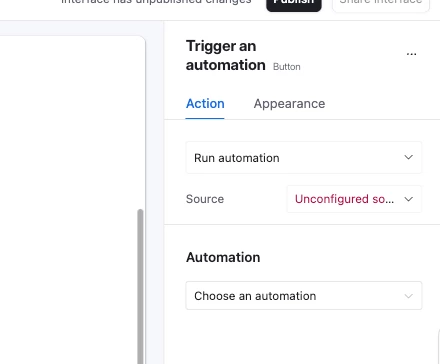
Ok, interestingly enough, I am just stuck in the interface.  That choose the automation drop down never opens.


ScottWorld
Forum|alt.badge.img+35
  • Genius
  • July 27, 2026

That screenshot says that you haven’t chosen a source yet (which, in this case, would be one of the records in your base).

Which interface page did you choose? The blank page? The blank page is a little bit more difficult to configure, since each element on the page can potentially be pulling from a different source.

Similar thing with the dashboard page — each group on a dashboard page can be connected to a different source  

An easier interface page to work with would be the list page, where there can only be one source per entire page.   

- ScottWorld, Expert Airtable Consultant


Forum|alt.badge.img+1
  • Author
  • New Participant
  • July 27, 2026

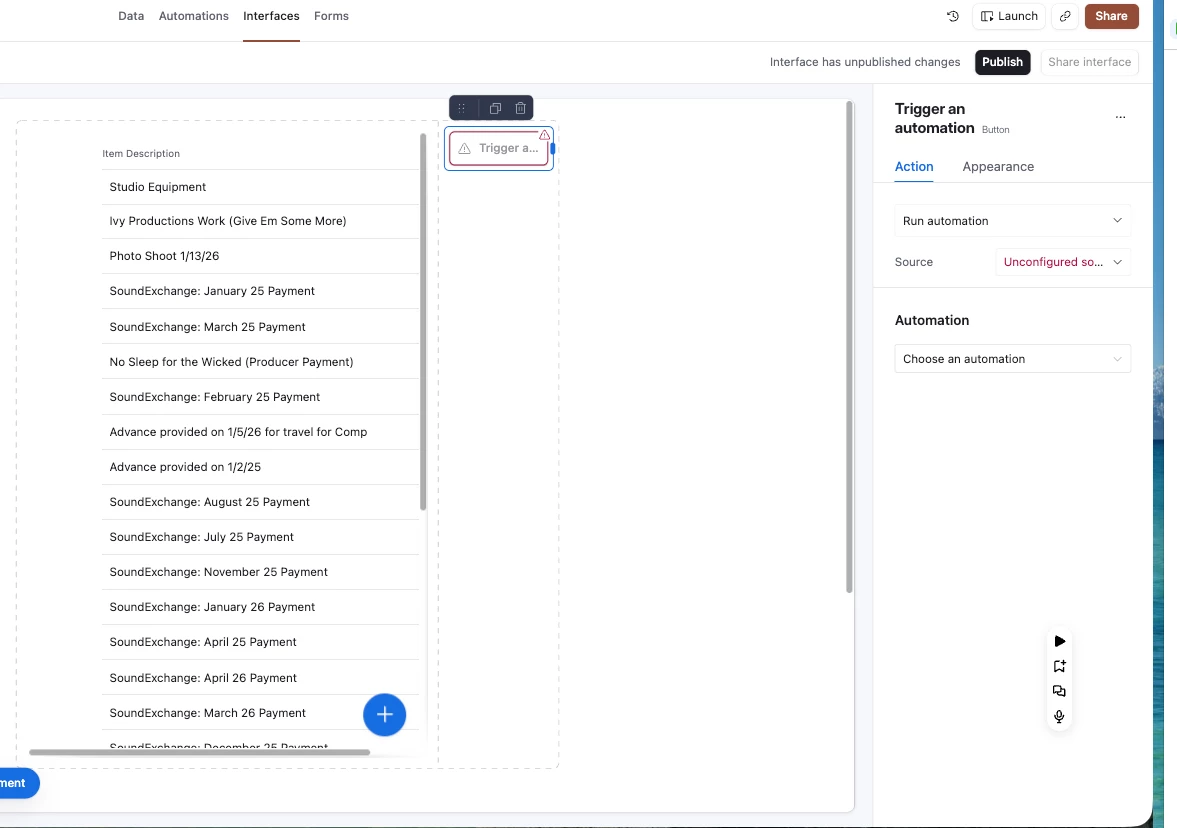
I added the list view.  See below.  The drop down is still inactive.


ScottWorld
Forum|alt.badge.img+35
  • Genius
  • July 27, 2026

That is actually the blank interface page.

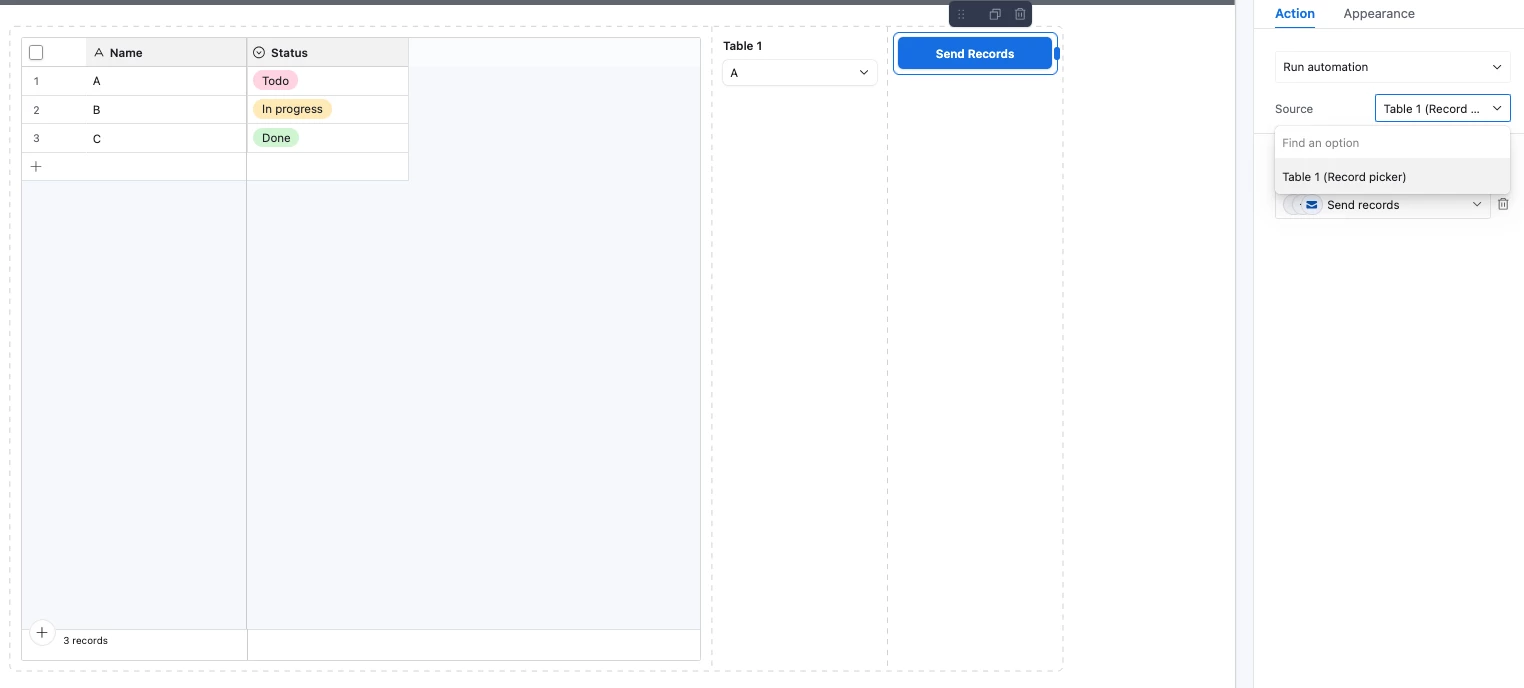
You would need to add a “record picker” to that page, and then you can connect the “run automation” button to the record picker.

This is because Airtable automations can only be triggered from a single record -- they can’t be triggered from a list of records.

So your “run automation” button would need to be connected to a particular record from the record picker.

p.s. There are also a few button options that don’t require you to be connected to a record picker, such as going to an external URL. If you go to a URL, you can trigger external webhook automations like some of the options I listed above.

- ScottWorld, Expert Airtable Consultant


Forum|alt.badge.img+6
  • Participating Frequently
  • July 27, 2026

This is a common issue that has tripped me up on several occasions.  You can only assign automations that have a “When a record is updated” or “When a button is clicked” trigger wired to a Button field in the source table and not just an automation.


What you can do in the table itself is make sure you’ve got a Button field type set up, and the automation’s trigger is “When a button is clicked” and have it pointing to that exact field.


The automation will have to be turned ON and not just saved before you see it as an option in the Interface Builder.


If you are adding the button as an Interface element double check that you are in Edit mode on the interface and make sure that the element is bound to the same table that the automation’s trigger lives in.  Most of the time it is cross table mismatches that usually cause the assign option to just not appear.

If it is not showing up after that you can try removing and re adding the button element as sometimes that helps.