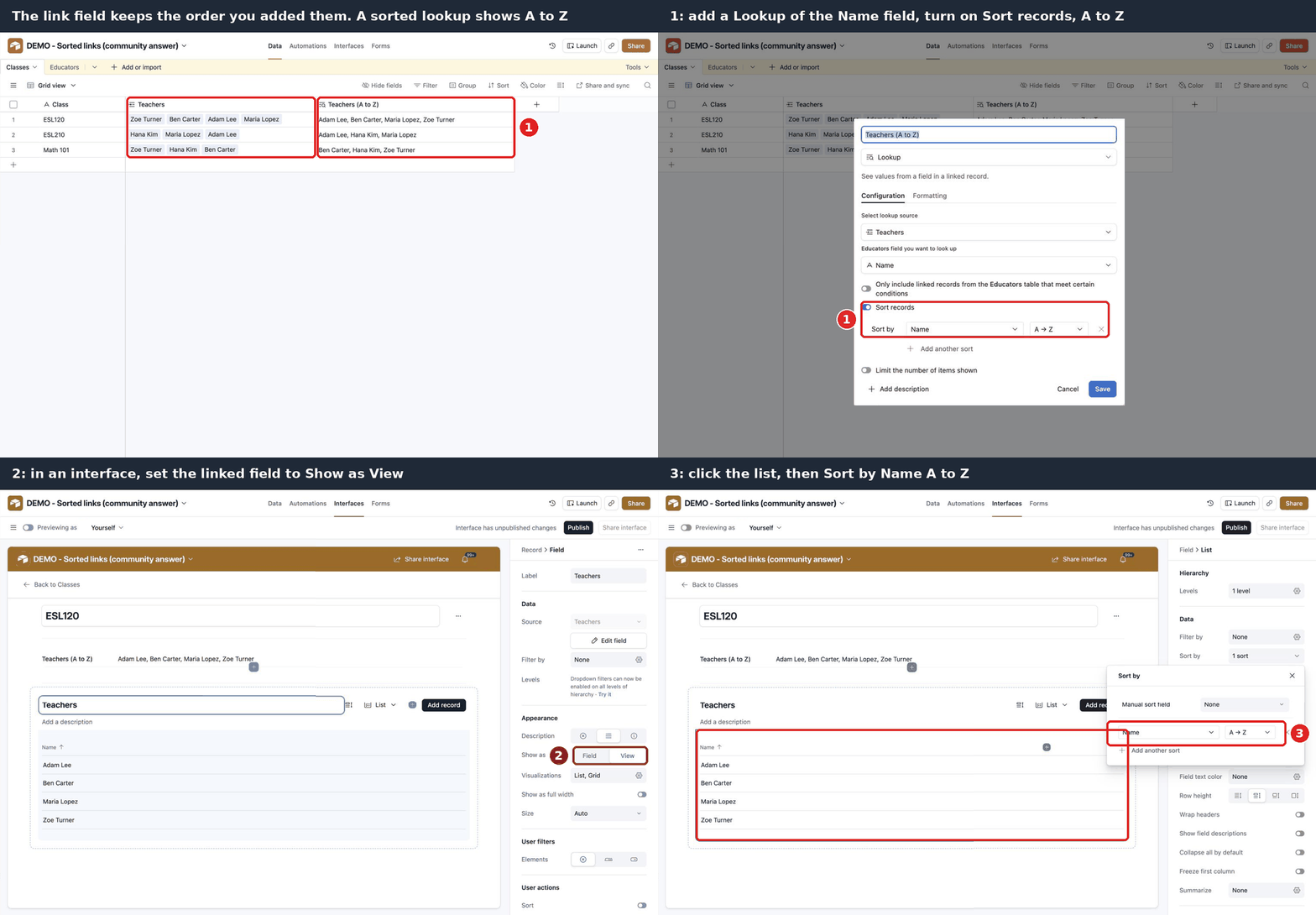
Hi again, unfortunately the linked record field itself still can’t sort, it keeps the order you added them in. But you can get the same result in two easy ways, no code needed.
In your table: add a Lookup field next to it (say “Teachers (A to Z)”), pick your Teachers link and the Name field, then turn on “Sort records” and choose Name, A to Z. It shows the names alphabetically and stays sorted on its own when you add someone new. You can hide the original field in that view if you only need to read the list.
In an interface: open the record page, click the linked field and set “Show as” to View. Then click the list that appears and set Sort by to Name, A to Z. The names show alphabetically for everyone using the interface, and you can still add or remove links from there.
Thanks for the suggestion. This unfortunately doesn’t work for my use case.
I want the linked records to be A-Z so that they display A-Z in a Fillout Form. That form needs to source from a linked record field so that attendance records get linked to the student record.
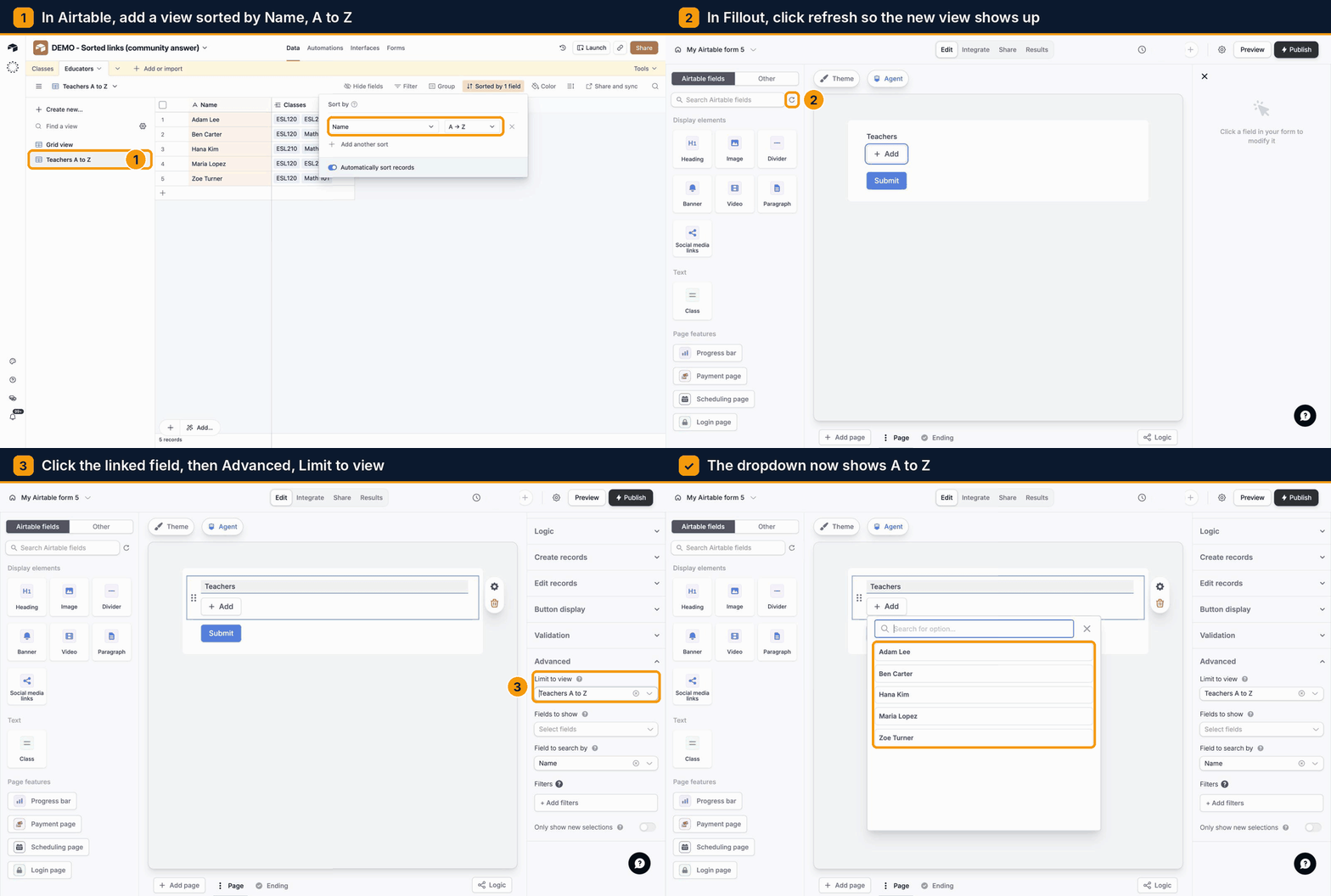
Ah got it, that makes more sense now. Fillout doesn’t have its own sort setting for linked records, it shows them in the order they sit in your table. The trick is to give it a sorted view to read from instead:
In your Students table, make a new grid view (I called mine “Students A to Z”) and sort it by Name, A to Z.
In Fillout, hit the little refresh icon next to “Search Airtable fields”, otherwise the new view won’t show up yet.
Click your linked record field, scroll down to Advanced on the right and set “Limit to view” to that view.
That’s it, the dropdown shows everyone A to Z and it still saves as a proper link to the student record, so your attendance links keep working. Keep that view free of filters, because Fillout only shows the records that are in it.
One thing worth testing: in the linked record field settings, turn on “Limit record selection to a view” and point it at a view of Teachers sorted A to Z. The record picker in the Airtable UI follows that view’s order, so new entries are easy to find.
I can’t confirm Fillout honors that view order, since it reads options through its own Airtable integration. Check whether Fillout lets you choose a source view or sort options, and if not, a dropdown field fed by a sorted view or a separate Fillout sort setting may be the cleaner route. Either way, test with a new record before relying on it.