
Question

Diagonal column headers

  • September 2, 2026
  • 5 replies
  • 66 views

Forum|alt.badge.img

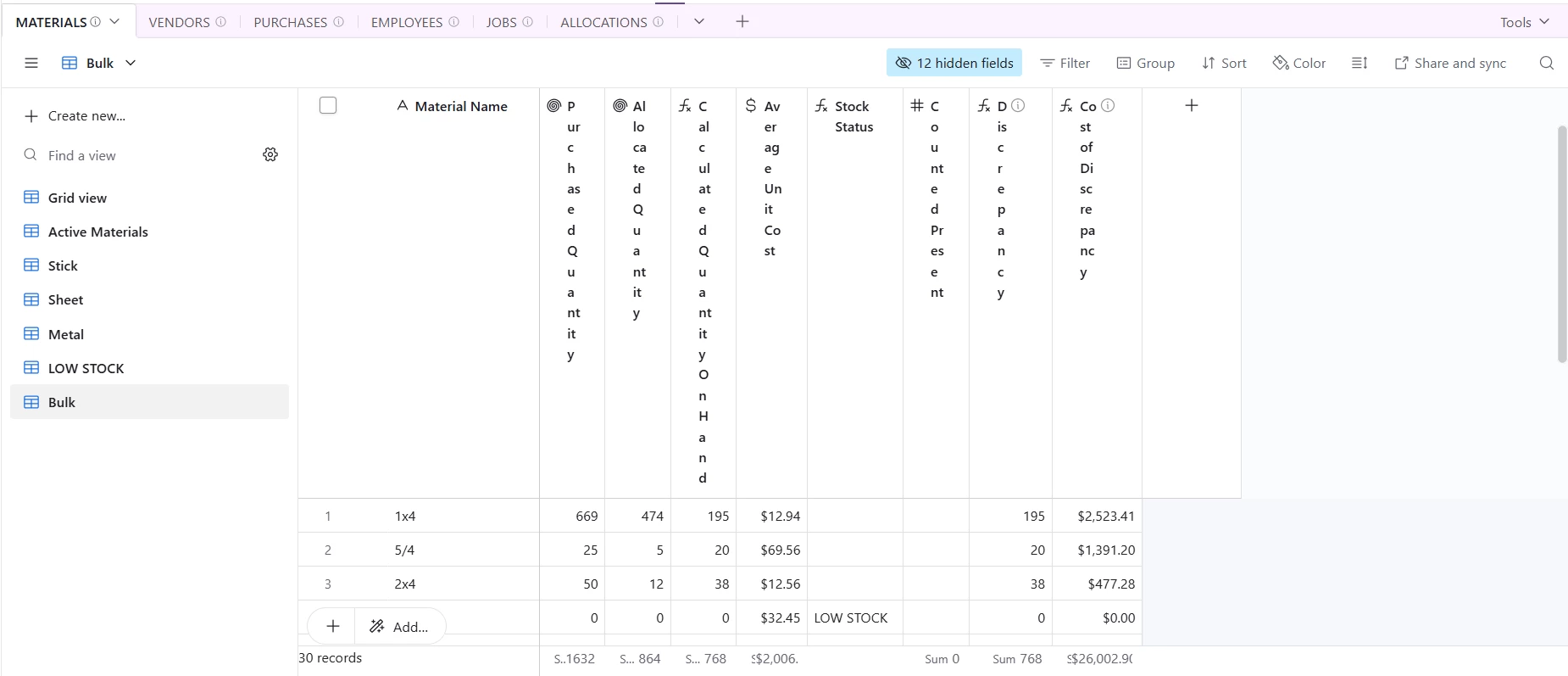
So I have a internal inventory system built out where I record a bunch of different values per each material where the column name is much much larger than the data that goes in the column. As a result each cell is mostly empty wasted space that spreads out my screen with nothing useful, and means that I have to constantly scroll side to side to see all the data I need at one time. 

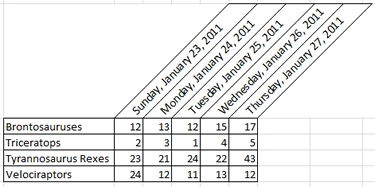
Bluntly, this sucks. Is there a way to have angled column headers so that the column name can still be see in full, but the columns can be made only as wide as they need to be? Something like this:
 

5 replies

TheTimeSavingCo
Forum|alt.badge.img+32

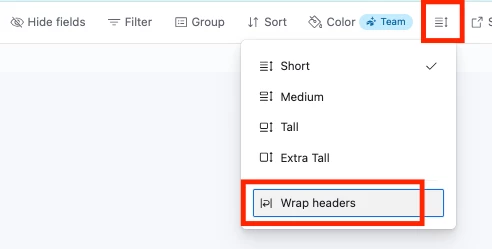
I’m afraid not.  We do have ‘Wrap headers’ though which should do what you need?


danny adam
  • New Participant
  • September 3, 2026

feel u bro. angled headers are def possible but depends on the platform. Excel/Sheets got text rotation under format options. for web, CSS rotate is the way. tooltips with abbreviations could also work if u wanna keep it simple. what r u using?


Forum|alt.badge.img
  • Author
  • New Participant
  • September 3, 2026

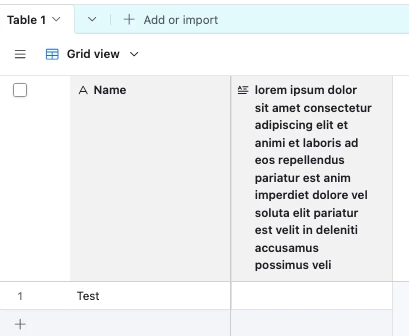
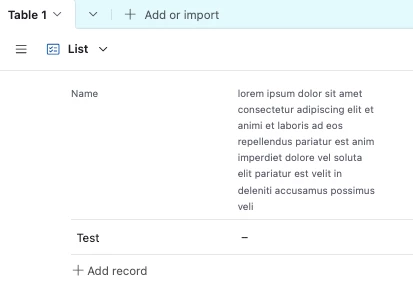
Unfortunately ​@TheTimeSavingCo not so much, I use a 15.7” laptop so I don’t have that much screen area. The result of wrapped headers is this:

 Which then only shows 4 rows of the useful data as the column headers don’t scroll up (which makes sense). If I wanted/needed wider columns it would do. However since most of the data I need is only 2-6 digits of numbers the columns can, and for readability should, be very narrow.

Is there a way to request a feature add?


TheTimeSavingCo
Forum|alt.badge.img+32

Ahh yeah I see what you mean

Yeap you can file a feature request here: https://community.airtable.com/p/product-ideas


TheTimeSavingCo
Forum|alt.badge.img+32

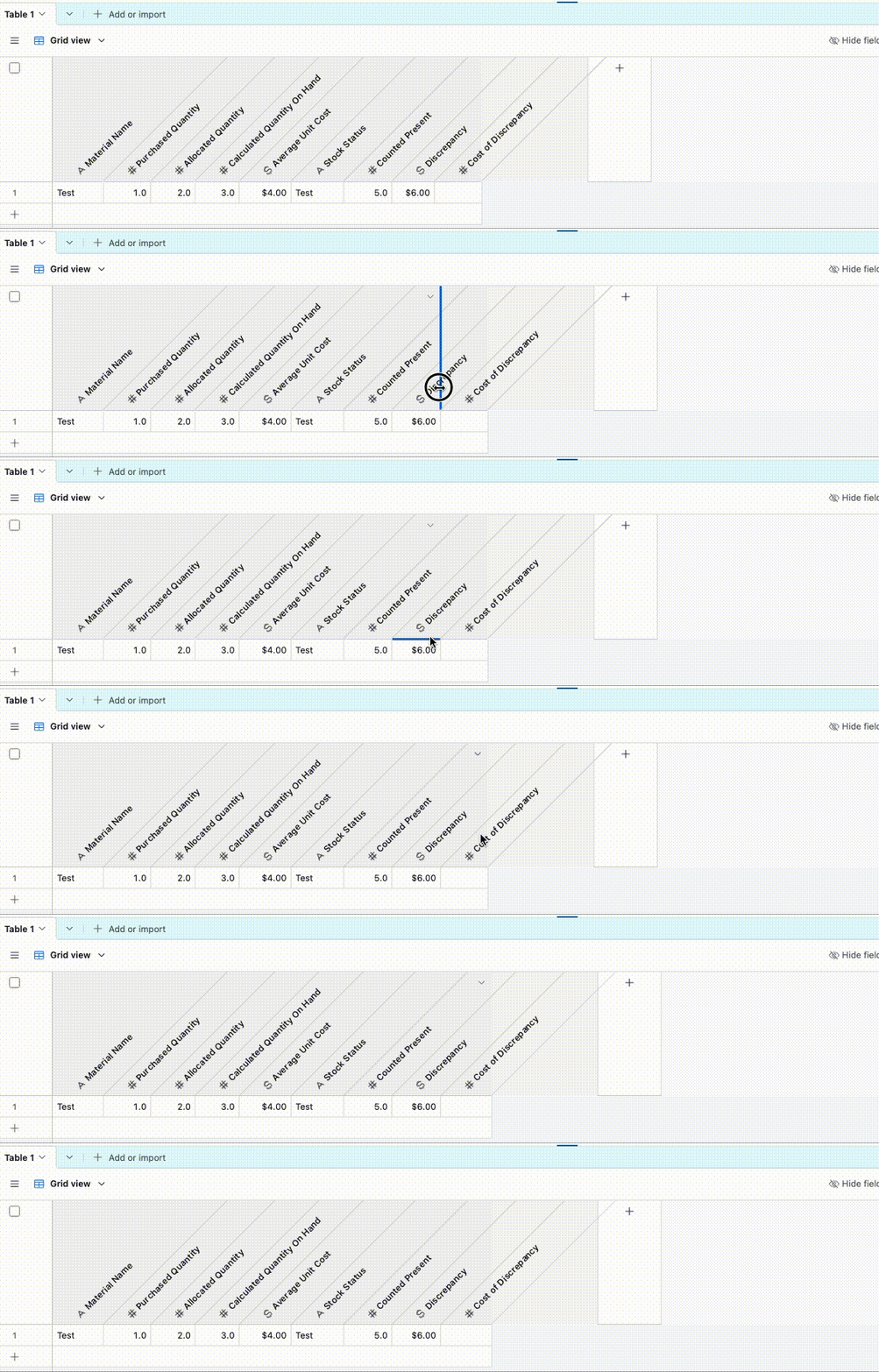
This was really interesting to me so I tinkered a bit to get a Userscript working.  It looks alright but it’s pretty clunky.  Could probably iron out more of the issues but eh, this works.  I tried to get the spacing of the ‘Add new field’ column to dynamically update but gave up after a bit

The vertical lines between the headers are technically still there, just hidden, and so to resize the headers we’d need to click on them

To install it you’ll need to install a Userscript manager (such as GreaseMonkey, ViolentMonkey, etc) as a browser extension and then load up the following script.  Let me know if you have any issues with installation or with usage and I’ll see what I can do!

We can make this apply only to specific views by updating this part of the script:

// @match        https://airtable.com/appxOc1MJKEFInsW5/tblatsc5wCwfrpMi6/viwVmnIjaaPt2SrQE

And we’d just need to update the app ID, table ID and view ID

On the off chance you want it to apply this to all views in a single table, then we would add an asterisk after the table ID like so:

// @match        https://airtable.com/appxOc1MJKEFInsW5/tblatsc5wCwfrpMi6/*
// ==UserScript==
// @name Airtable diagonal field headers
// @description Displays Airtable grid field names diagonally.
// @namespace http://thetimesaving.company
// @version 2.3
// @match https://airtable.com/appxOc1MJKEFInsW5/tblatsc5wCwfrpMi6/viwVmnIjaaPt2SrQE
// @grant none
// ==/UserScript==

(() => {
'use strict';

const style = document.createElement('style');

style.textContent = `


:root {
--tm-header-height: 155px;
}

.cell.header[data-columnid] {
overflow: visible !important;
border-left-color: transparent !important;
border-right-color: transparent !important;
}

/* Make this the positioning box for the field name. */
.cell.header[data-columnid] .contentWrapper {
position: relative !important;
height: 100% !important;
overflow: visible !important;
}

/* Don't let Airtable's intermediate wrappers become anchors. */
.cell.header[data-columnid] .nameAndDescription,
.cell.header[data-columnid] .name,
.cell.header[data-columnid] .name > div,
.cell.header[data-columnid] .name > div > div {
position: static !important;
overflow: visible !important;
}

/* Airtable field icon. */
.cell.header[data-columnid] .displayTypeIcon {
position: absolute !important;
left: 39px !important;
bottom: 10px !important;
top: auto !important;
z-index: 50 !important;
transform: rotate(-45deg);
transform-origin: bottom center;
}

/* Airtable field name. */
.cell.header[data-columnid] .name [aria-description^="Tooltip:"] {
position: absolute !important;
left: 56px !important;
bottom: 16px !important;

display: block !important;
width: max-content !important;
white-space: nowrap !important;
overflow: visible !important;
-webkit-line-clamp: unset !important;

transform: rotate(-45deg);
transform-origin: left bottom;

pointer-events: none !important;
z-index: 50 !important;
font-kerning: none !important;
letter-spacing: 0.1px !important;
text-rendering: geometricPrecision;
}

/* Diagonal separator. */
.cell.header[data-columnid] > .resizeHandle {
overflow: visible !important;
}

.cell.header[data-columnid] > .resizeHandle::after {
content: "";
position: absolute;
left: 50%;
bottom: 0;

width: 1px;
height: 141.421%;
background: #d4d4d4;

transform: rotate(45deg);
transform-origin: bottom center;

pointer-events: none;
z-index: 40;
}

/* Leave room for the final diagonal header edge. */
.headerRow.rightPane .gridHeaderRowAddFieldButton,
.headerRow.rightPane .pageCreatorAddColumnButton {
transform: translateX(var(--tm-header-height)) !important;
}

/* Extend the last field's grey header background to the right. */
.cell.header[data-columnid]:last-of-type::before {
content: "";
position: absolute;

left: 100%;
top: 0;

width: var(--tm-header-height);
height: 100%;

background: #f5f5f5;

pointer-events: none;
z-index: -1;
}
`;

document.head.appendChild(style);
})();