
Question

How to create an interface that lists all records in one linked field?

  • Nov 5, 2026 8:50 PM UTC
  • 2 replies
  • 18 views

Forum|alt.badge.img+5

I’m looking to create an interface that displays a list of all linked records inside one field of a specific record. I also want to list info about those linked records.


To be more tangible… this is about creating a rosters for each of 10 different classes at a small school. I have a Classes table and a Students table. It is a many-to-many relationship. Some students are enrolled in more than one class. Each class has multiple students. 


I want to display each class roster separately, plus info about each student (phone number, age, etc). A teacher wants to click a button with their class name, and see only their roster plus info about each student, in a grid/list.


TIA!

2 replies

DevonK
Forum|alt.badge.img+18
  • Inspiring
  • Nov 5, 2026 9:22 PM UTC

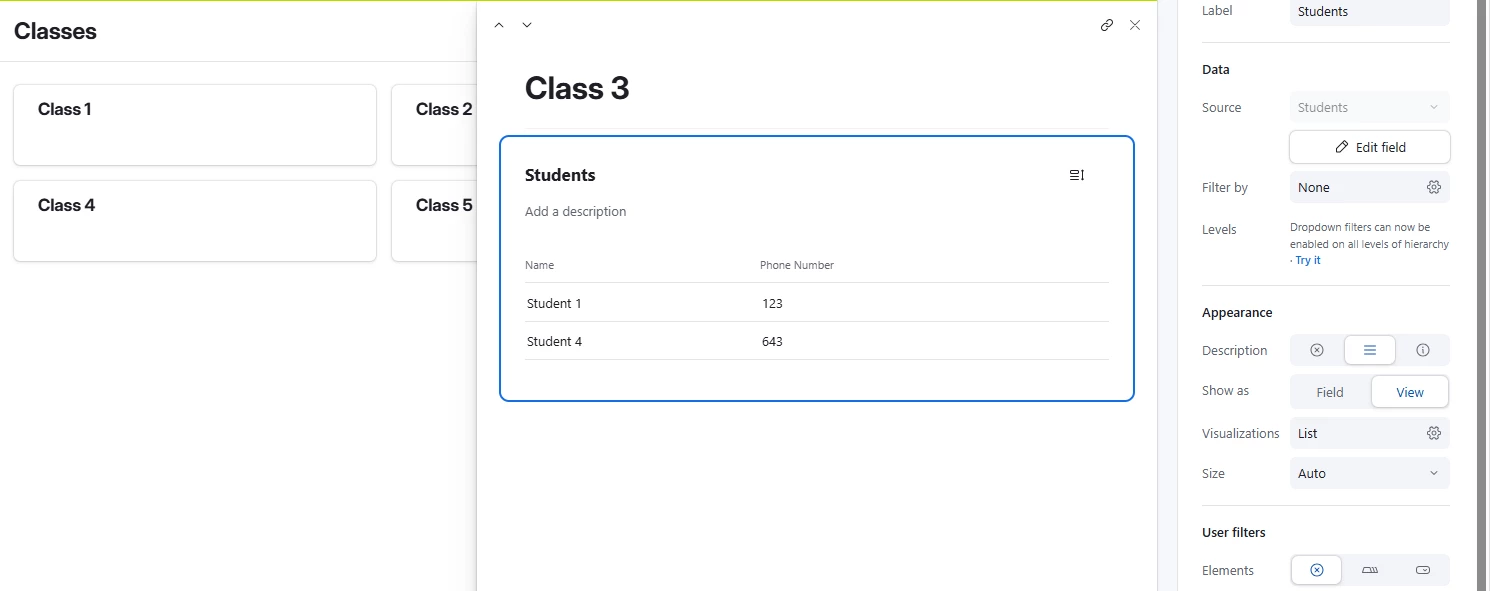
Create an interface page that’s either a list, gallery, or whatever visualization you want. That page would be linked to your Classes table. Then create an expanded record that contains the Students field, and display it as a view instead of a field. Here’s a very basic example:


VedaSync_Aziz
Forum|alt.badge.img
  • Participating Frequently
  • Nov 5, 2026 10:47 PM UTC

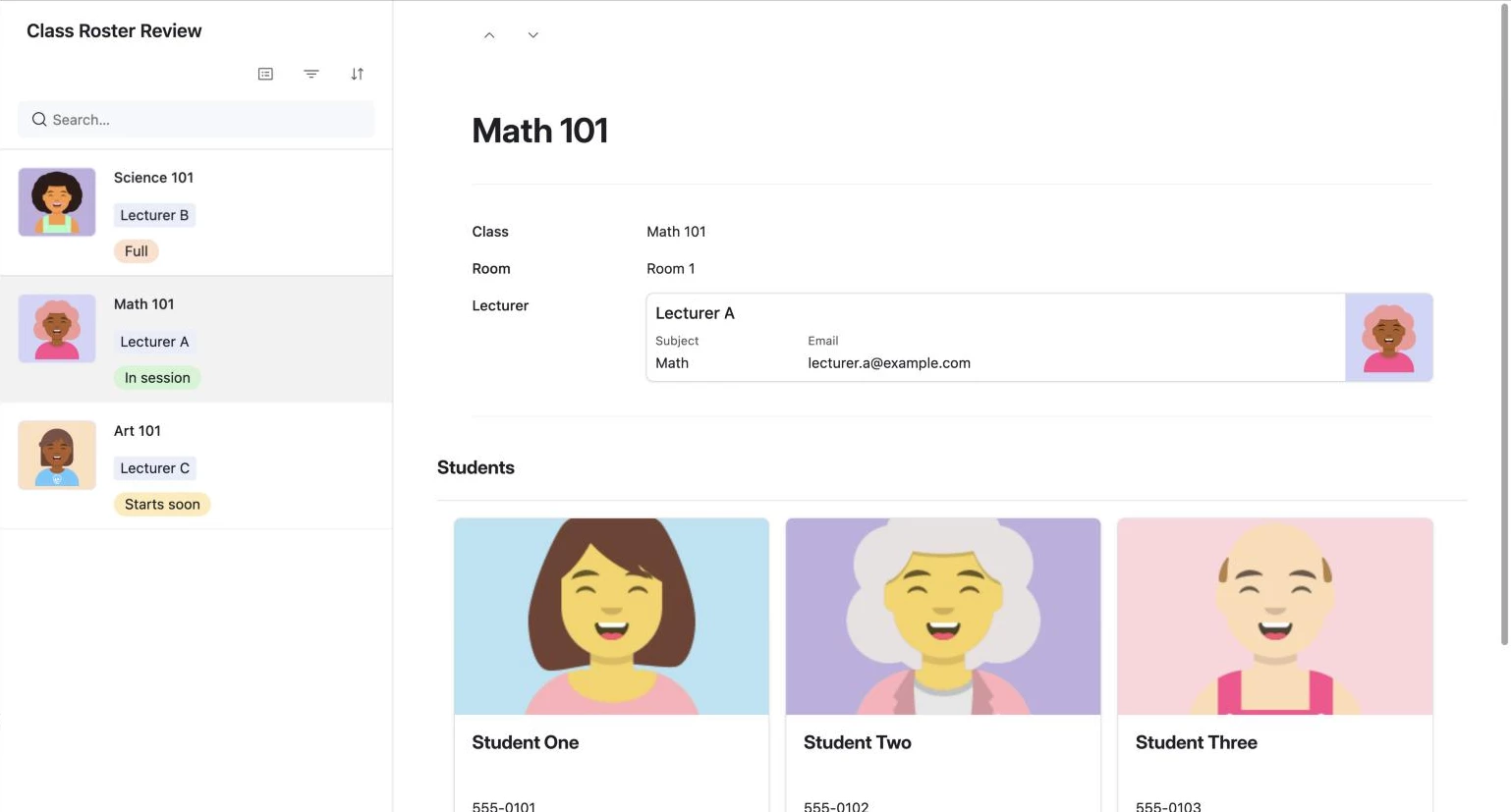
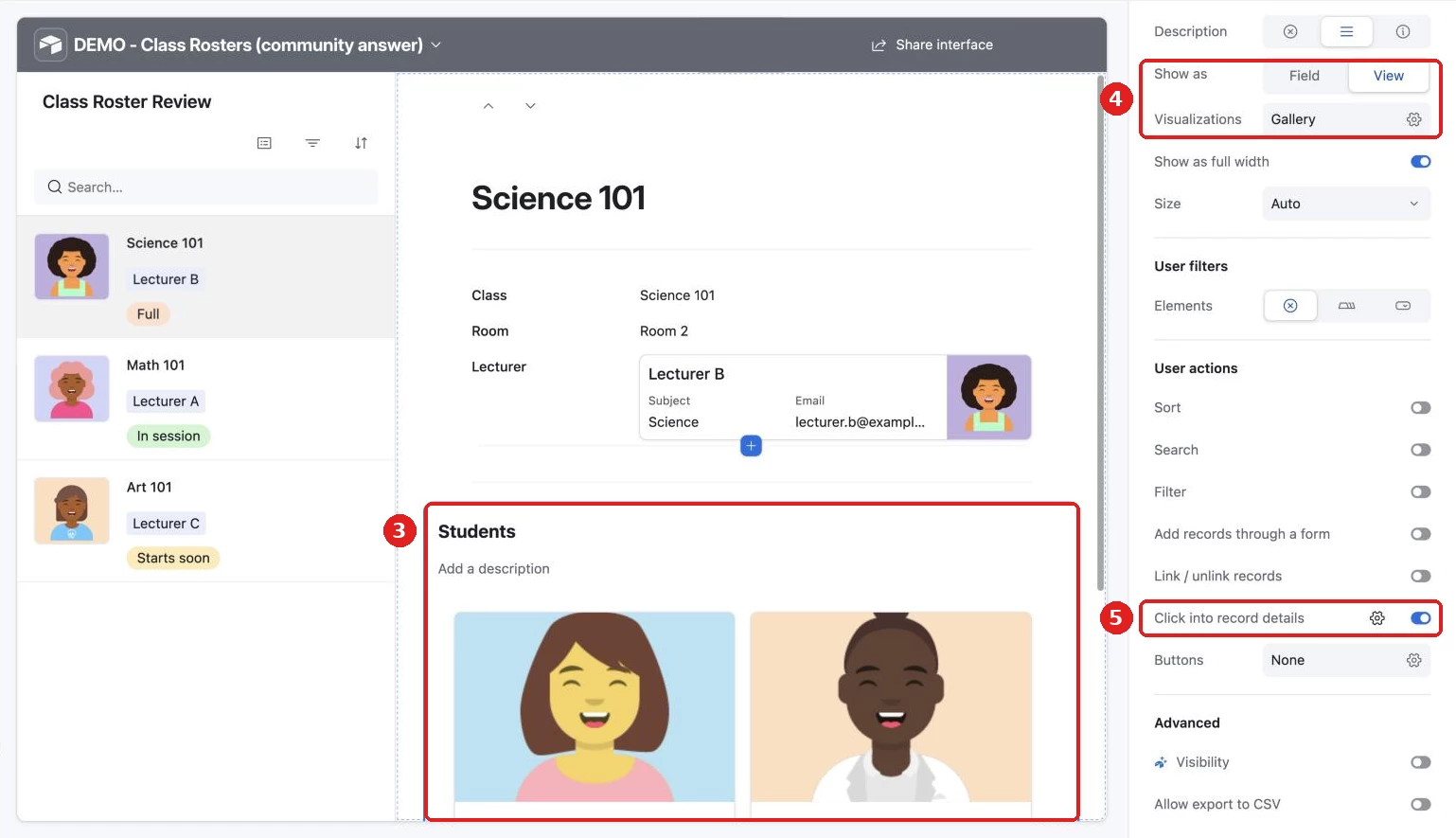
Building on what ​@DevonK  said, the Record review layout works really well for this. You pick a class on the left and only that class's students show on the right. Here's what it looks like in a small demo I built:

Here's how to set it up:

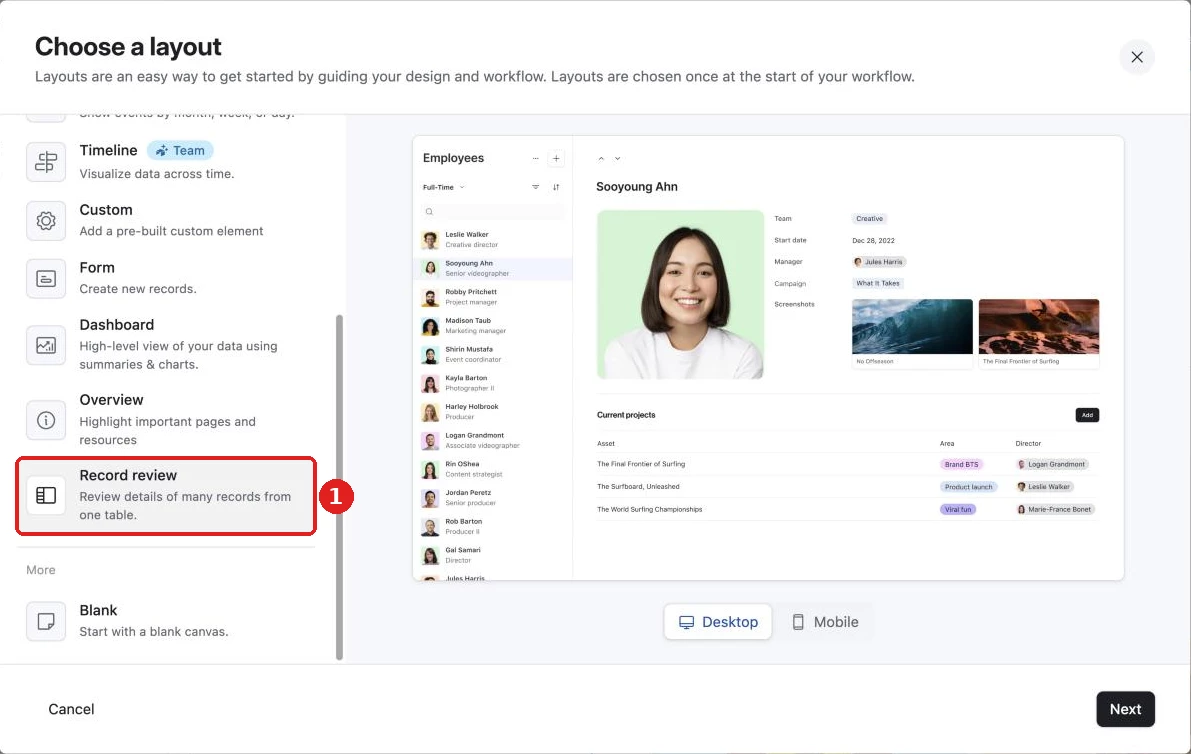
1. In your interface, click the + next to your page group to add a page. Scroll down the list, choose Record review and click Next. Connect it to your Classes table, then follow the prompts to name the page.

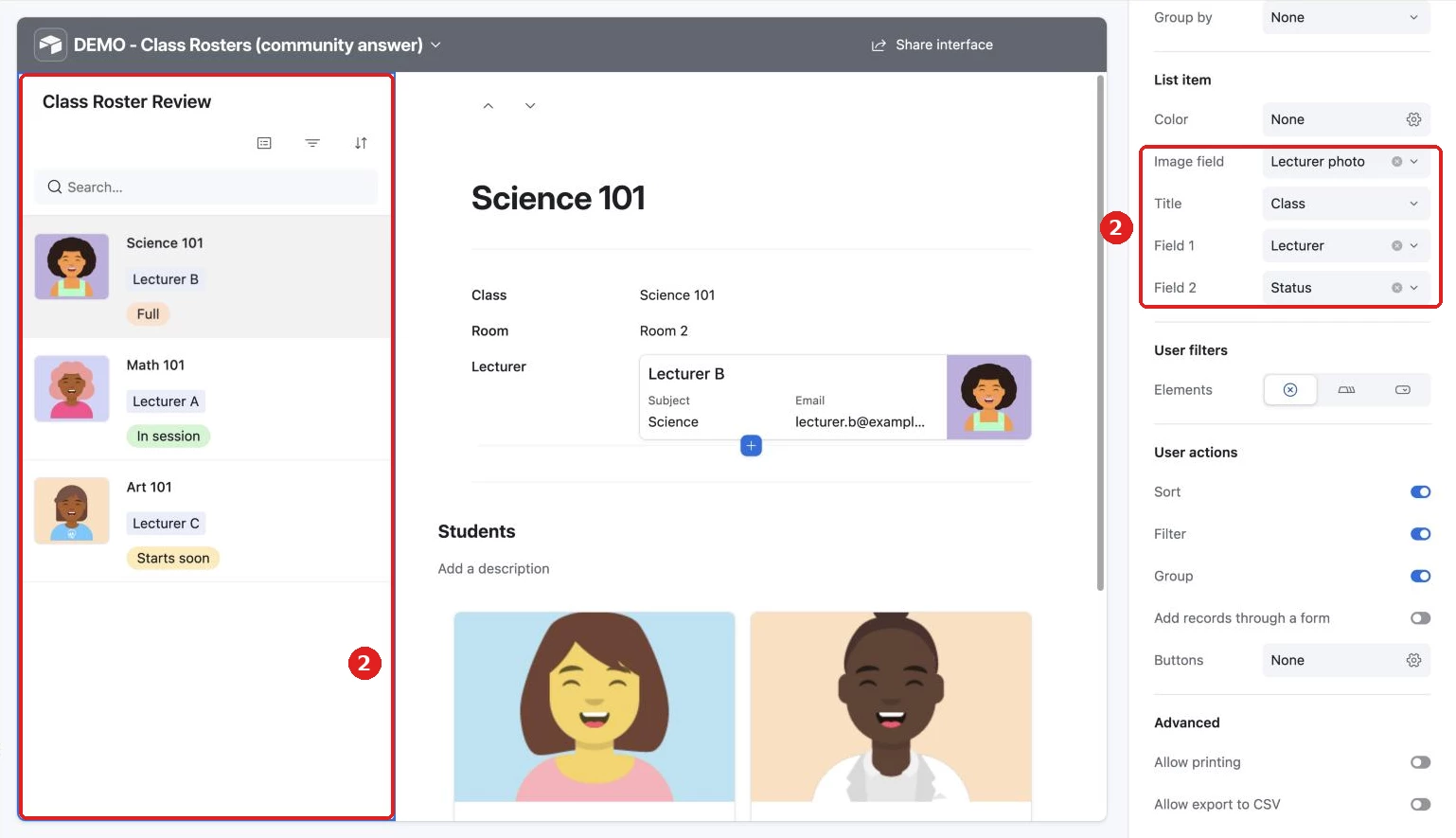
2. Click the list on the left. In the panel on the right, go to List item and pick what each row shows. I set Image field to the lecturer's photo, Title to Class, Field 1 to Lecturer and Field 2 to Status.

3. Click the Students section on the page. If the panel on the right says Gallery at the top, click Field next to it.

4. Set Show as to View, then set Visualizations to Gallery.

5. Scroll down to User actions and turn on Click into record details. Now anyone can click a student to open their full details.

6. Do the same for your Lecturer field: click it, then turn on Click into record details so it opens the lecturer's own page.

7. Click Publish.

One tip: the image in the list has to come from the Classes table. To show a lecturer's photo there, add a lookup field in Classes that pulls the photo from Lecturers, then choose it in step 2. The pictures, status and lecturer are all optional, so you can start with just the class and student list.